

Pages > Create
Reusable Sections
Reuse page sections across your account with favorite and global sections. Start new sections from templates.
Overview
A page in SuperFunnel is built from sections. Rather than rebuilding the same section every time, you can save one and reuse it across pages, variants and variations anywhere in your account. SuperFunnel offers two kinds of reusable sections:
- Favorite section — reuse a section as a starting point, where each copy is independent and can be edited on its own. For example, a testimonial card with the same layout but different images and text.
- Global section — reuse a single shared section, where one edit updates every place it appears. For example, a header, footer, or legal block that is identical across all pages.
In short: choose a favorite when you keep recreating the same cards in the same layout but the images and text change, and a global section when the content stays consistent across all pages and you want a single update to change every instance.
You can also start a brand-new section from a template (see Add a reusable section or template to a page).
These tools are evolving
Favorite and global sections are built on some of SuperFunnel's earlier template features. They work, but we are redeveloping them with a stronger focus on MCP, using templates to improve your building experience.
Create a favorite section
Open a page in the editor
Edit a page (or one of its variants) with editing mode on.
Open the section menu
Hover over the section you want to save, for example your Hero section, to reveal the toolbar at its top-right corner. Click the ⋮ (ellipsis) → Add to Favorites.
Name it and choose where to save
In the dialog, optionally give the section a Name, then choose where to save it:
- Account — available to add on any page across your account.
- Dynamic Page — scoped to the current dynamic page only.
Click Create.
Ignore additional options
The dialog shows Save Content and Save Images toggles, but the section is saved with its content and images either way. These features were deprecated.
Each time you add the favorite to a page it comes in as an independent copy, so you can change its images and text without affecting the others.
Create a global section
Open a page in the editor
Edit a page (or one of its variants) with editing mode on.
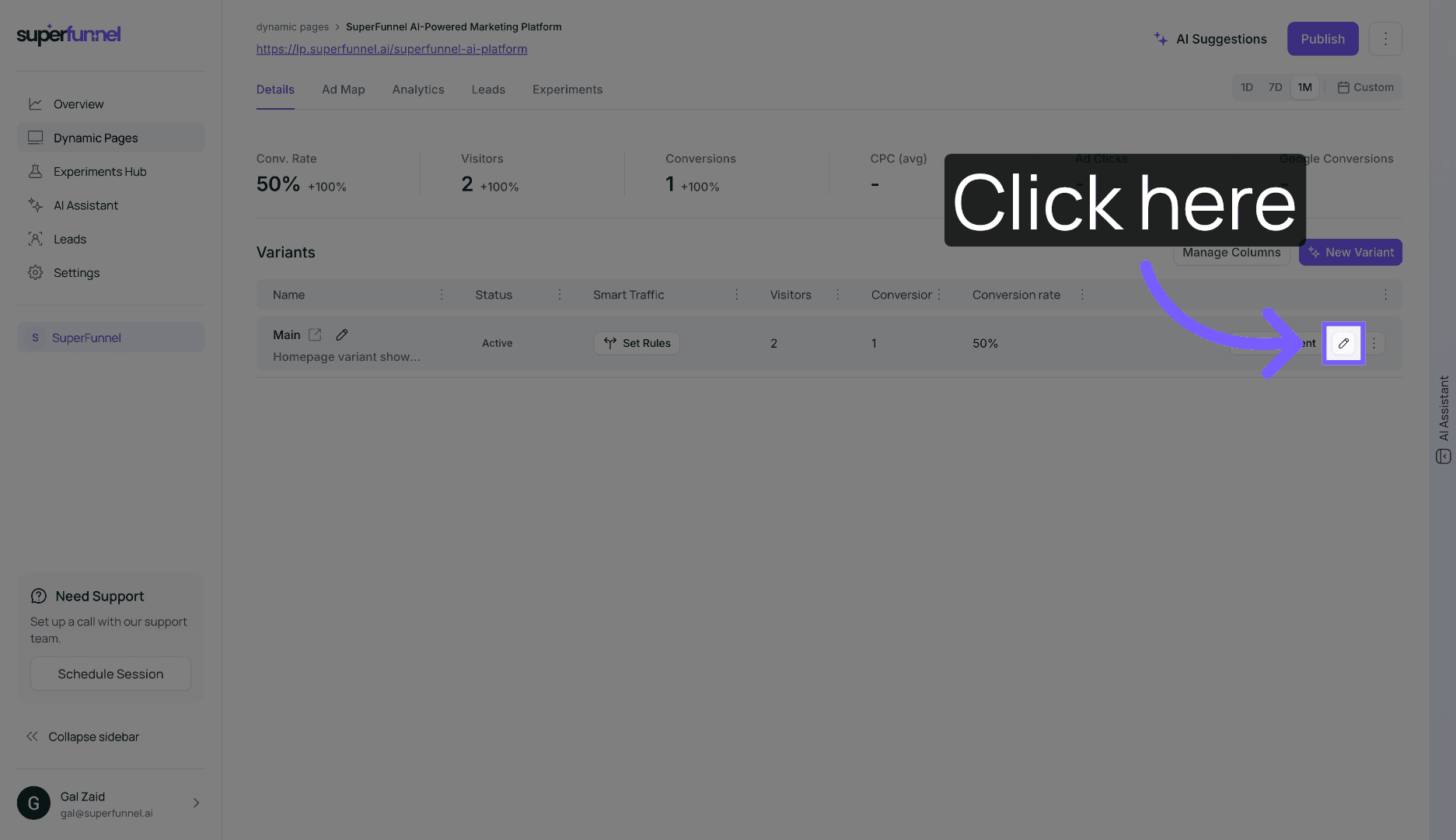
Set the section as global
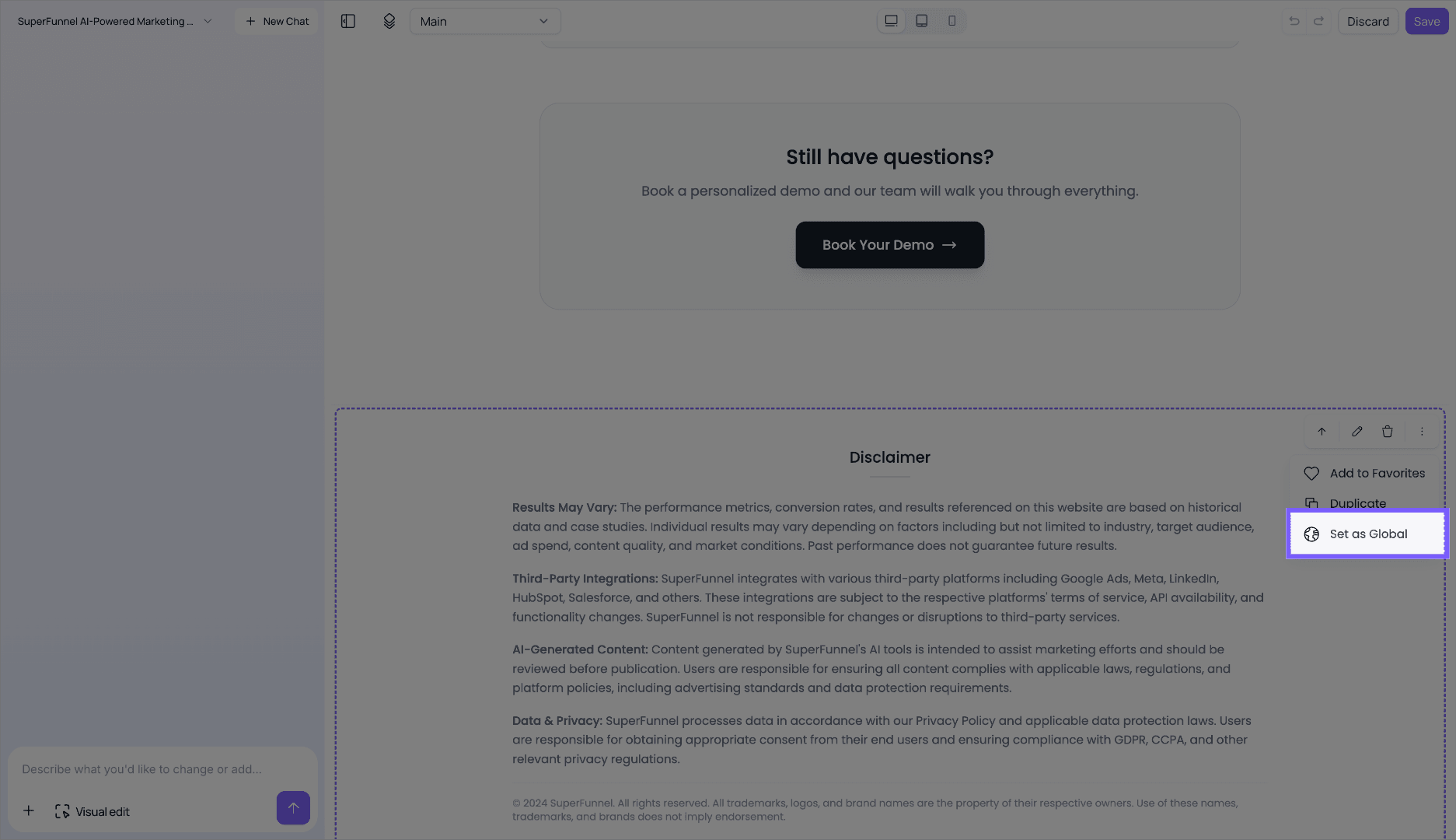
Hover over the section to reveal the toolbar at its top-right corner, then click the ⋮ (ellipsis) → Set as Global.
Name the global section
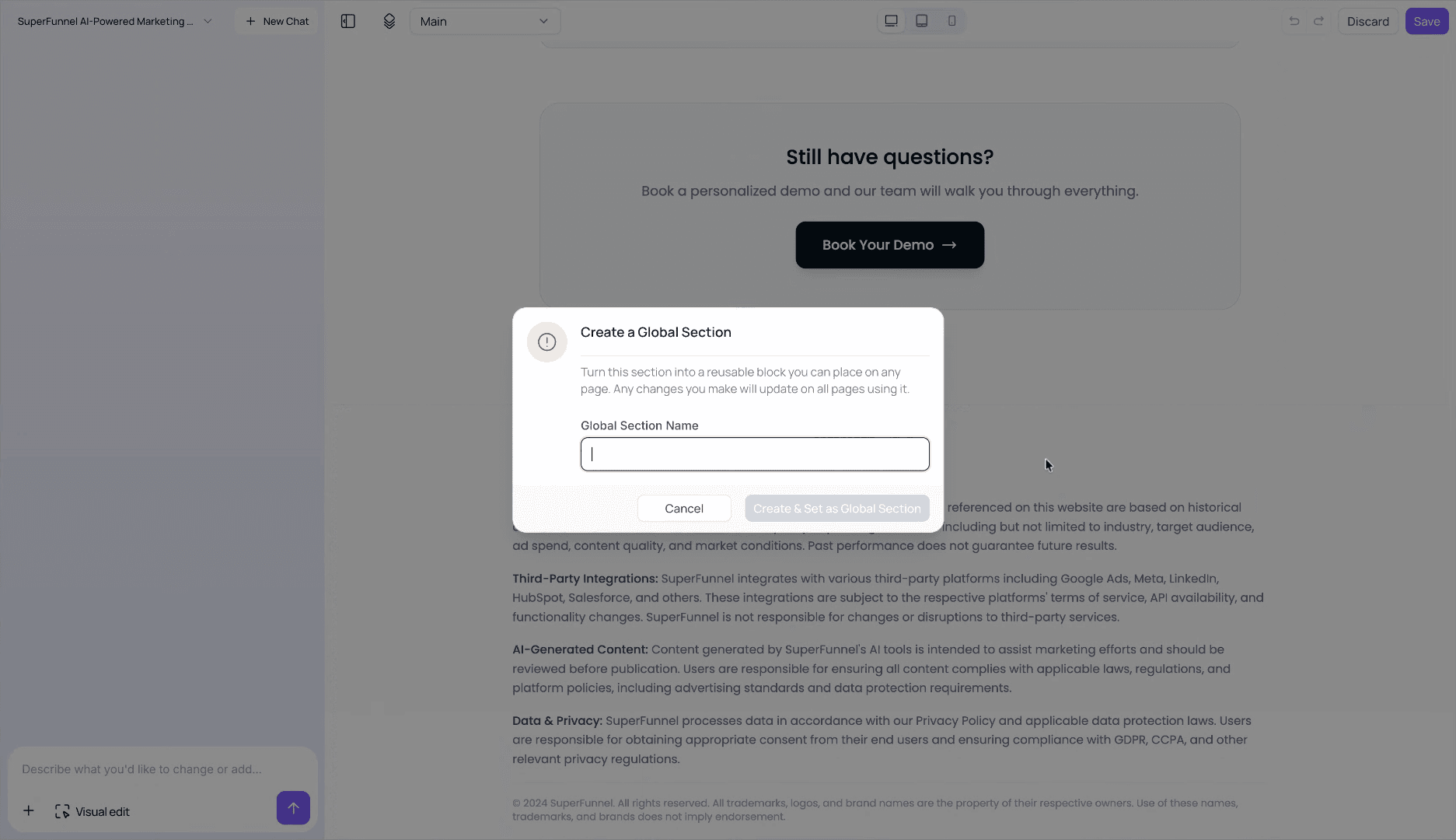
Enter a name to identify it, then click Create & Set as Global Section.
Once a section is global, it is locked. When you click to edit it, you are taken to edit it at the global level rather than the usual options to edit its code or style.
Republish pages after editing a global section
Changes to a global section apply to every page using it, but those pages do not go live until you republish them.
You can convert a global section back to a normal section at any time, which unlinks it from the other pages.
Add a reusable section or template to a page
While building a page, look for the + Add Section button between sections or at the bottom of the page editor. It lets you insert:
- Favorites — a saved favorite section, added as an independent copy.
- Global — one of your global sections, linked to all its other instances.
- Templates — a simple pre-built section to get you started.
Remember to publish all pages that use a global section after you make edits, so the changes go live.
Summary
Favorite and global sections both let you reuse work across your account. Reach for a favorite when the layout repeats but the content changes, and a global section when the content is the same everywhere and you want one edit to update every page. Either way, add them from + Add Section, alongside ready-made templates.