

Ad & Integrations > Security
reCAPTCHA
Protect your quizzes and forms from spam and bot submissions with Google reCAPTCHA.
Overview
CAPTCHAs (Completely Automated Public Turing tests to tell Computers and Humans Apart) are challenges designed to block bots while letting real visitors through. reCAPTCHA is Google's version. SuperFunnel integrates with reCAPTCHA v3, the latest version. Instead of showing visitors a challenge like a checkbox or image puzzle, it scores each visitor invisibly in the background.
Once connected, you can enable reCAPTCHA on any quiz or form to keep spam and bot submissions out of your leads.
Prerequisite
You'll need your own Google reCAPTCHA account and site set up in the Google reCAPTCHA admin console to get a site key and secret key. SuperFunnel connects to your existing keys rather than issuing its own.
Step-by-Step Guide to Connecting reCAPTCHA
Connect reCAPTCHA in Settings
1.a. Within your SuperFunnel Workspace, navigate to Settings > Integrations.
1.b. Under Apps, click the reCAPTCHA card.
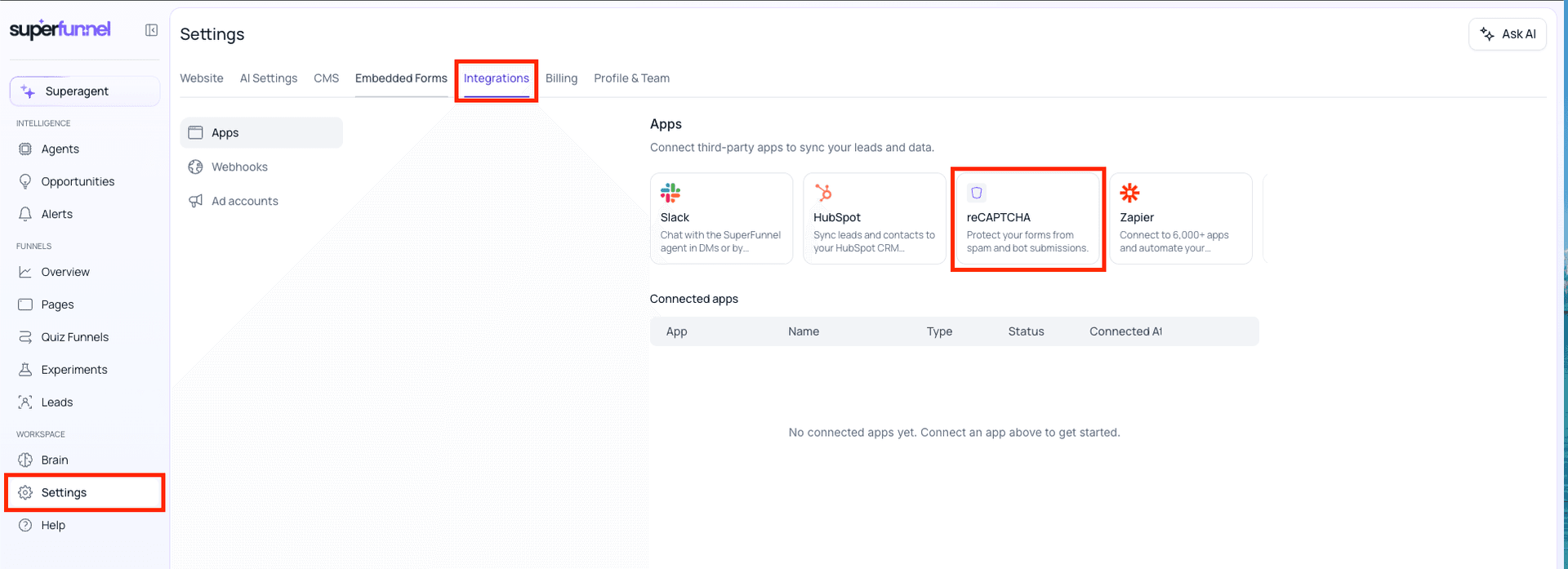
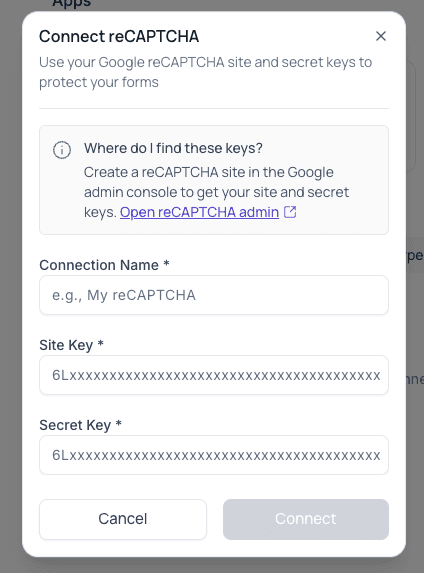
1.c. Enter a Connection Name, then paste in the Site Key and Secret Key from your Google reCAPTCHA site.
Don't have keys yet? Click Open reCAPTCHA admin to create a site first.
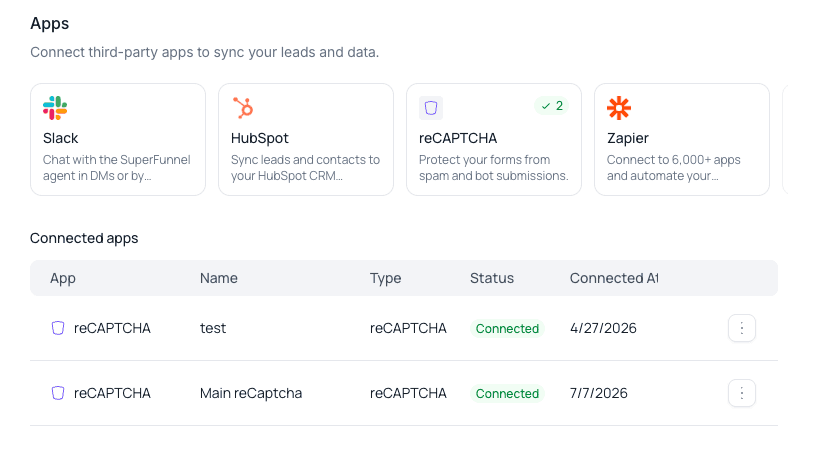
1.d. Click Connect. The credential now appears under Connected apps, and the reCAPTCHA card shows how many credentials you've connected.
Enable Captcha on a quiz or form
Captcha protection is available on quizzes and forms, anywhere a visitor submits information and creates a lead.
Open the quiz or form and click the settings (gear) icon in the top left corner to find its options, then find the Captcha toggle.
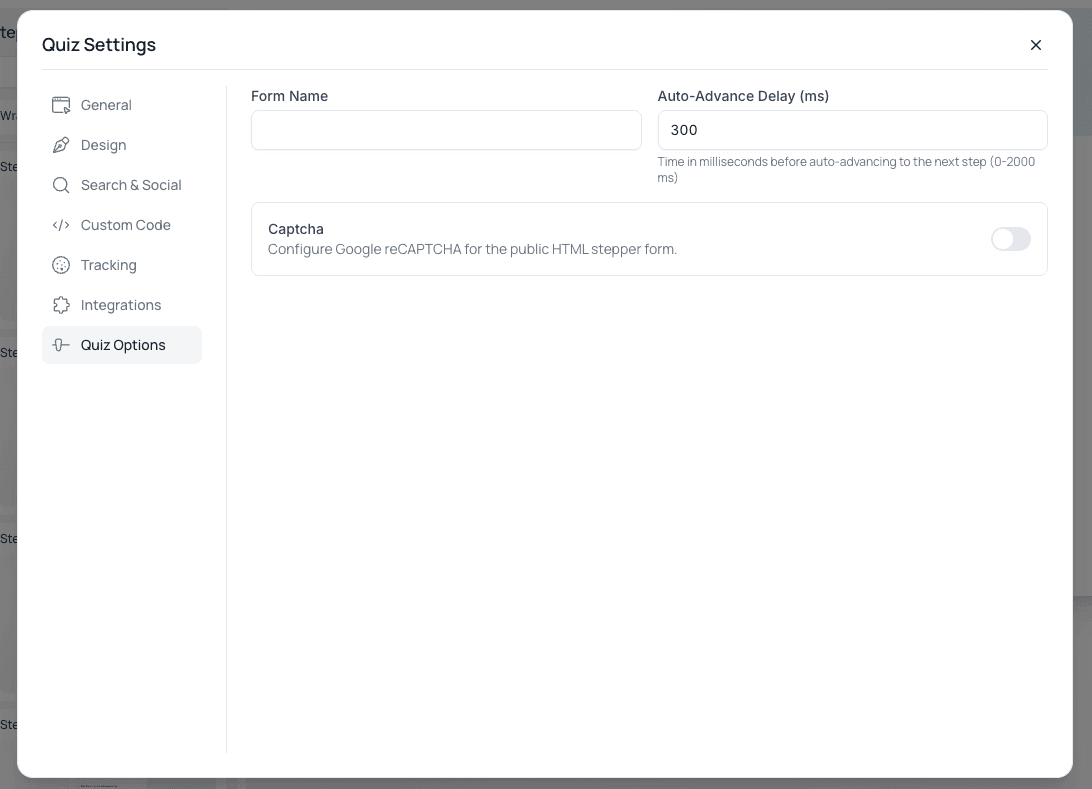
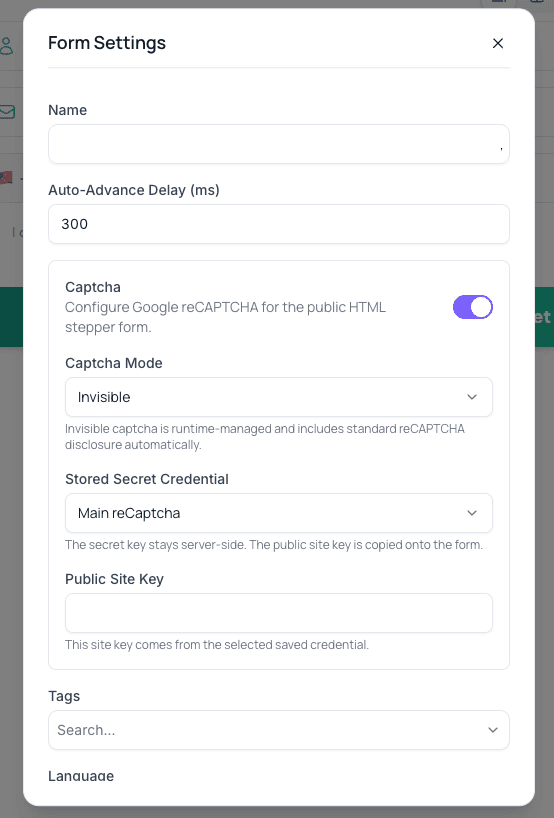
Toggle Captcha on to reveal its configuration options.
Configure the captcha
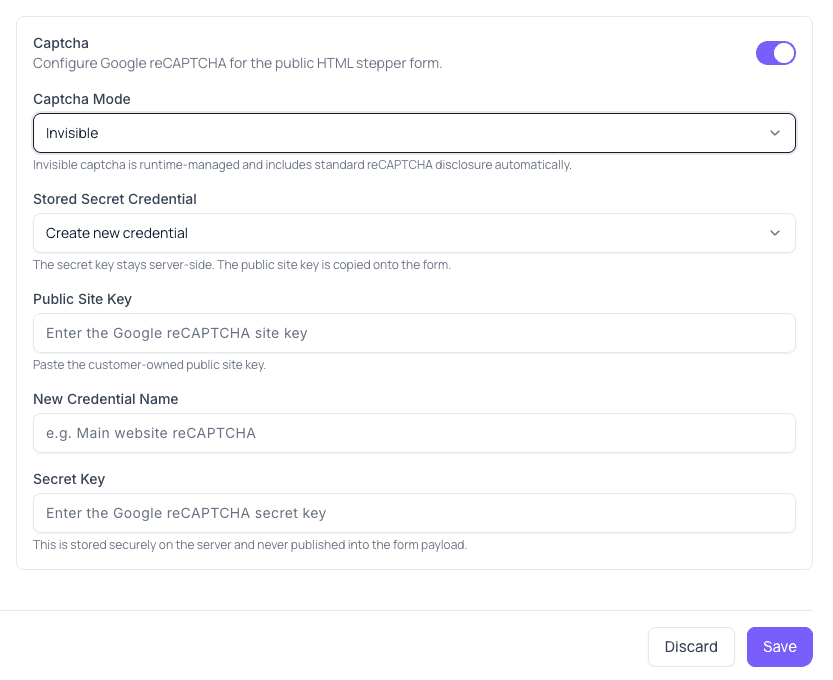
With Captcha enabled, configure the following:
- Captcha Mode: how the challenge behaves for visitors. Two options exist:
- Invisible (Default): runs silently in the background with no visible checkbox or puzzle.
- Visible Checkbox: Creates a checkbox or puzzle the user must complete.
- Stored Secret Credential: the credential you created in Step 1. Select an existing credential, or choose Create new credential to add one without leaving this panel.
- Public Site Key: populated automatically from the selected credential.
- New Credential Name and Secret Key: only shown when creating a new credential inline.
Keep credentials in sync
The Stored Secret Credential must match a credential connected in Step 1, since the secret key never leaves the server and the form only ever receives the public site key.
Save & Publish
Click Save. Then publish the relevant quiz or pages. Captcha protection only takes effect once the asset is published. Remember to publish it to apply the change to live traffic.
Summary
Now that reCAPTCHA is connected, enable it on any quiz or form that collects leads to keep spam and bot submissions out of your data.