

Integrations > AI Apps
MCP & AI Apps
Connect Claude, ChatGPT, Cursor, and other AI apps to your SuperFunnel account so you can work with your pages, campaigns, and analytics from the AI app you already use.
Overview
SuperFunnel's MCP server lets you use SuperFunnel from the AI app you already work in. Once connected, you can ask that app to read your analytics, review campaigns, build or edit pages, and more, without switching back to SuperFunnel.
The app signs in with your SuperFunnel account, so it can only reach the workspaces you can. You also choose which kinds of actions it is allowed to take.
Not the same as Connectors
Connectors let SuperFunnel's own Agents reach other tools, like HubSpot or Google Ads. MCP works the other way around: it lets an outside AI app reach SuperFunnel.
Some features live only in the SuperFunnel app
An AI app can do a lot, but not everything. Some experiences are only available in SuperFunnel itself, from visual tools like Reports, which many teams check every day, to the SuperFunnel mascot.
More than one workspace?
If you belong to more than one workspace, and do not specify which one(s) to use, your AI app first asks which one(s) to use.
Add SuperFunnel to Your AI App
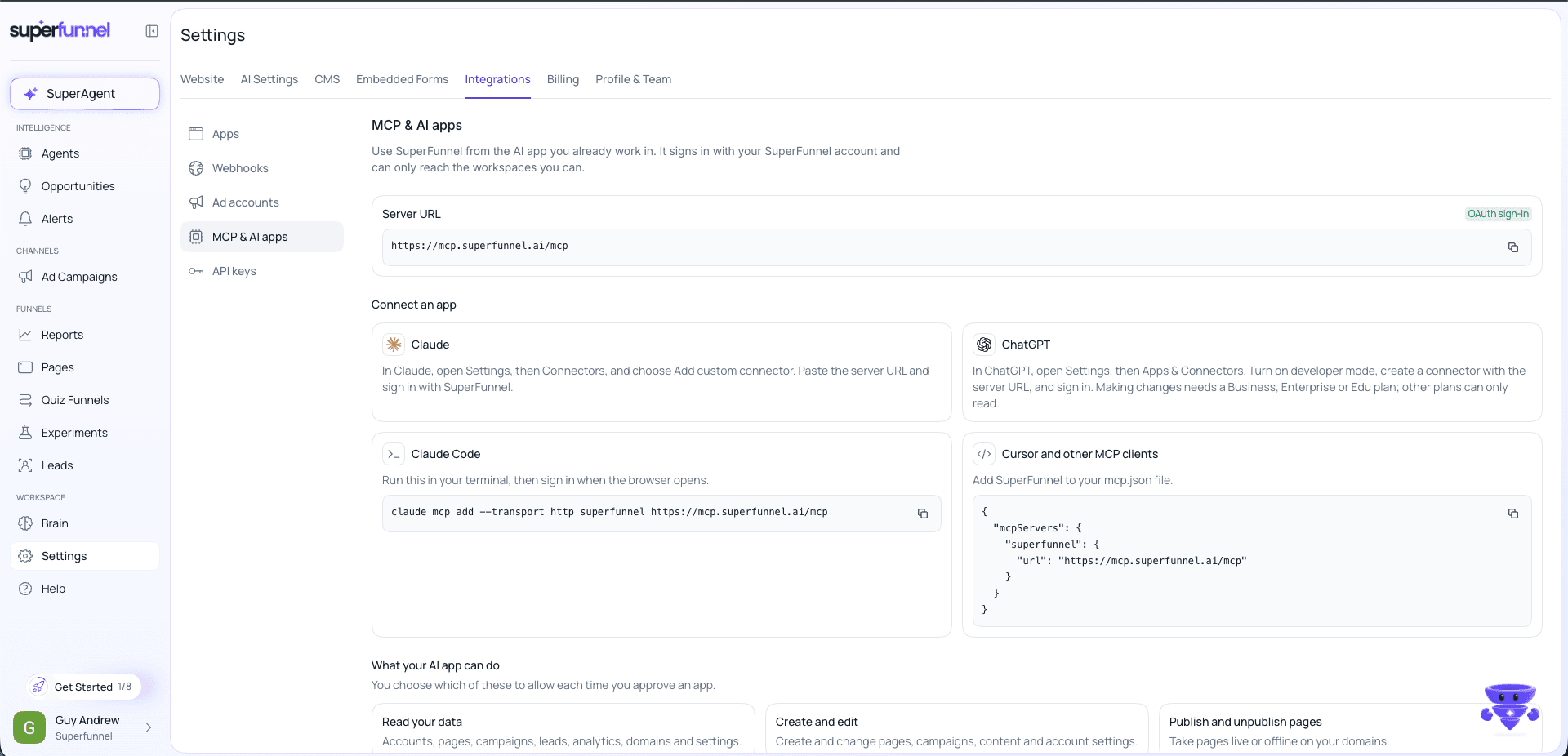
Copy the server URL
In SuperFunnel, go to Settings > Integrations > MCP & AI apps. Copy the Server URL.
Add it to your AI app
Choose your app:
In the Claude app, open Settings, then Connectors, and choose Add custom connector. Paste the server URL.
Sign in with SuperFunnel
Your AI app opens a SuperFunnel sign-in. Sign in with your usual SuperFunnel account.
Choose what the app can do
When you approve the app, you pick which of these to allow:
- Read your data — accounts, pages, campaigns, leads, analytics, domains, and settings.
- Create and edit — create and change pages, campaigns, content, and account settings.
- Publish and unpublish pages — take pages live or offline on your domains.
Example in Use
Here is a real read-only session from a wedding RSVP site built in SuperFunnel.
Ask how many people responded
Ask: "How many people RSVP'd using our wedding site, and how many said they're coming?"
Result: 89 people responded. 71 said yes and 18 said no.
Ask for the real headcount
Ask: "Counting plus-ones, how many guests are attending in total?"
Result: 110 guests across the 71 yes responses. 36 are coming alone, 32 are bringing one guest, 2 are bringing two, and 1 is bringing three.
Ask a planning question
Ask: "Of the people attending, how are they getting there?"
Result: 39 are arriving on their own, 21 are taking the early bus, and 11 are taking the late bus.
Ask about the page itself
Ask: "How did the wedding page perform over the last 30 days?"
Result: 408 views and 102 conversions, a 25% conversion rate.
Real data, read-only
These answers come from a live workspace. Only counts are shown here, not guest names or contact details. Nothing was created or changed.
Summary
Connect an AI app once with the SuperFunnel server URL and your usual sign-in, then work with your pages, campaigns, and analytics from that app. The app only reaches the workspaces you can, and only does what you allow.