

Pages > Create
Create Page
Build a new page in SuperFunnel using the AI Assistant — from a text description, images, or design files.
Overview
The SuperFunnel AI Assistant builds pages from your description. You can provide text, images, or both — paste in screenshots of your goals, upload brand assets you want used on the page, share Figma or other design files to replicate, or simply describe what you want in plain language. The more context you give, the closer the first draft will be to what you need.
A good prompt may cover the purpose of the page, elements to include, design and tone direction.
For example:
Create a page for my brand that showcases our products and has real customer reviews taken from online. Include a popup that provides a discount code and link to our shop. Make sure our social media is at the bottom of the page and popup.
A good prompt may also request copying or referencing an existing design or page.
For example:
Copy this Figma design 1:1 (with attached Figma files and screenshots)
You don't need to be exhaustive — the agent will make reasonable decisions for anything left unspecified, and you can refine the result afterwards.
What this guide covers
Step-by-Step Guide to Creating a Page
Open the AI Assistant
There are two ways to get started:
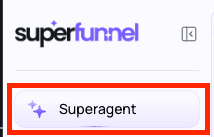
- From the left sidebar, click SuperAgent to open the SuperAgent directly.
- Or click Pages in the left sidebar, then click + Add Page — this also opens the SuperAgent.
Describe your page
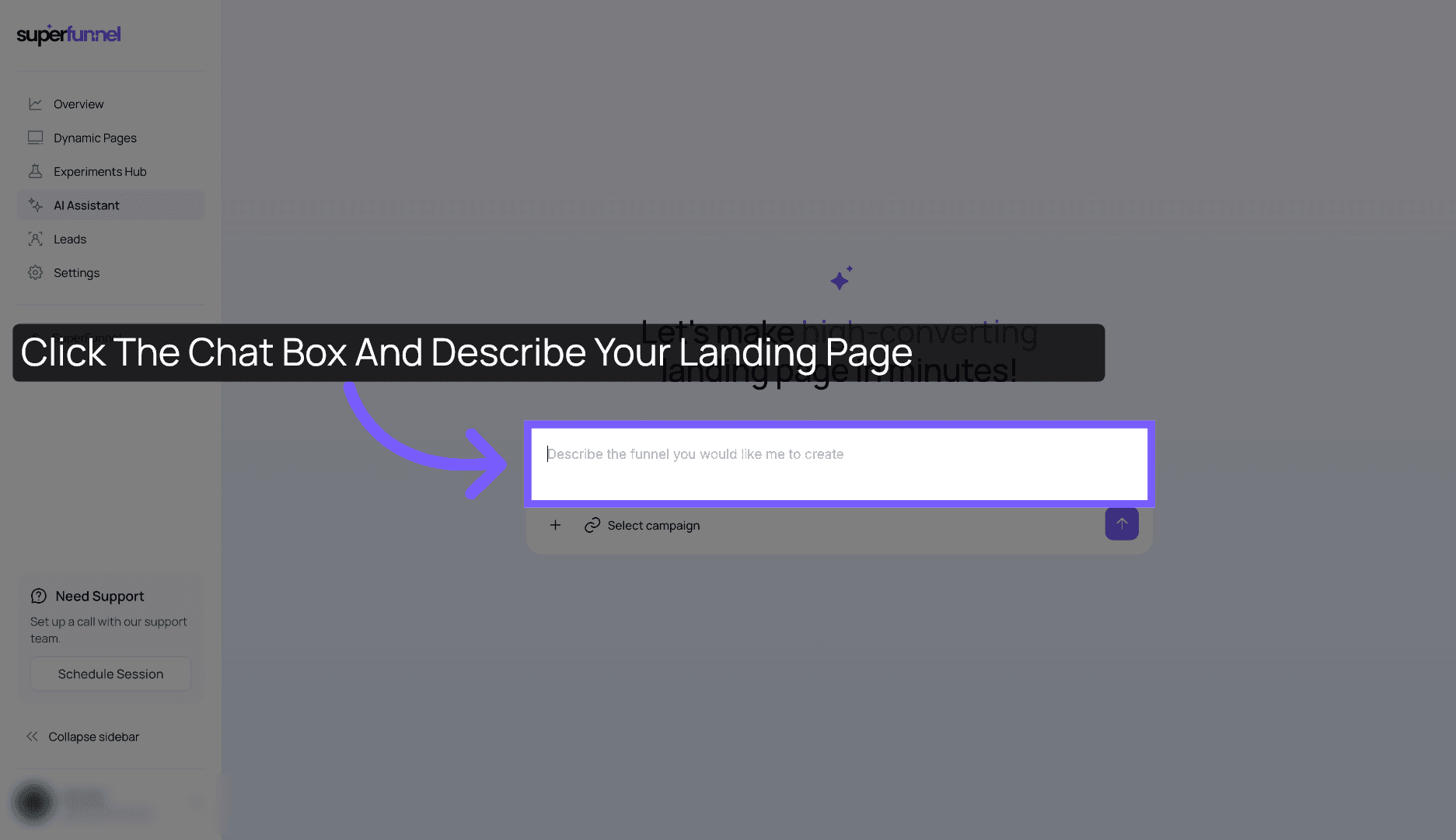
Click the chat box and describe the page you want to build. A strong prompt covers:
- Goal and offer — what the page is for and what it's asking the visitor to do
- Page elements — sections, popups, forms, quizzes, social proof, CTAs
- Design and feel — brand tone, color direction, layout preferences
- Assets or references — you can attach images, Figma designs, or screenshots for the agent to work from
Prompts can be as short as "Copy this Figma design 1:1" or a detailed paragraph covering every requirement. Either may work depending on your precision.
Best Practices
If you haven't already, read Prompt Best Practices for tips on getting the best results from the agent.
Initiate page creation
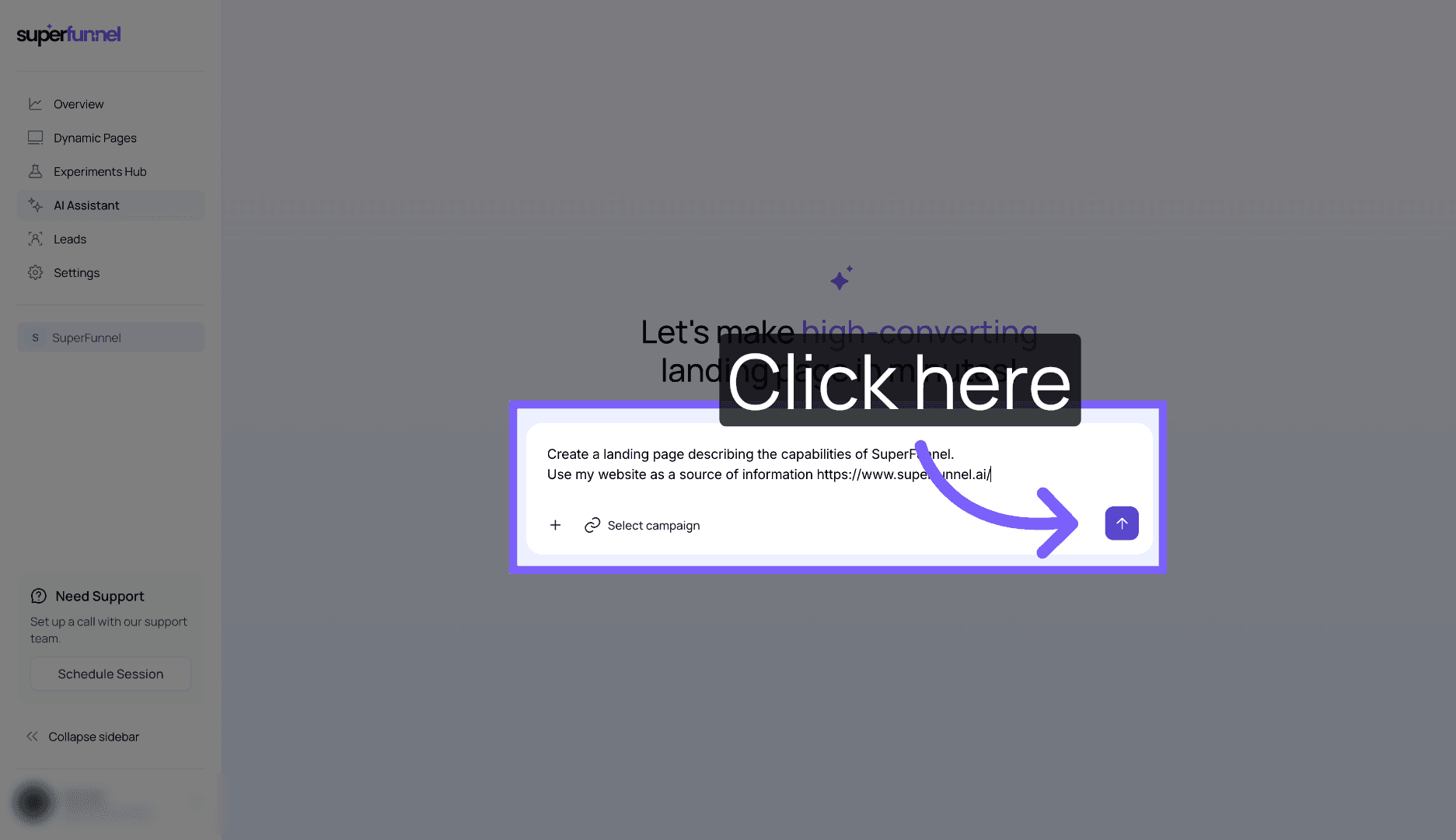
Click the send button to start generating the page.
This process can take several minutes. Wait until it finishes.
Review generated sections
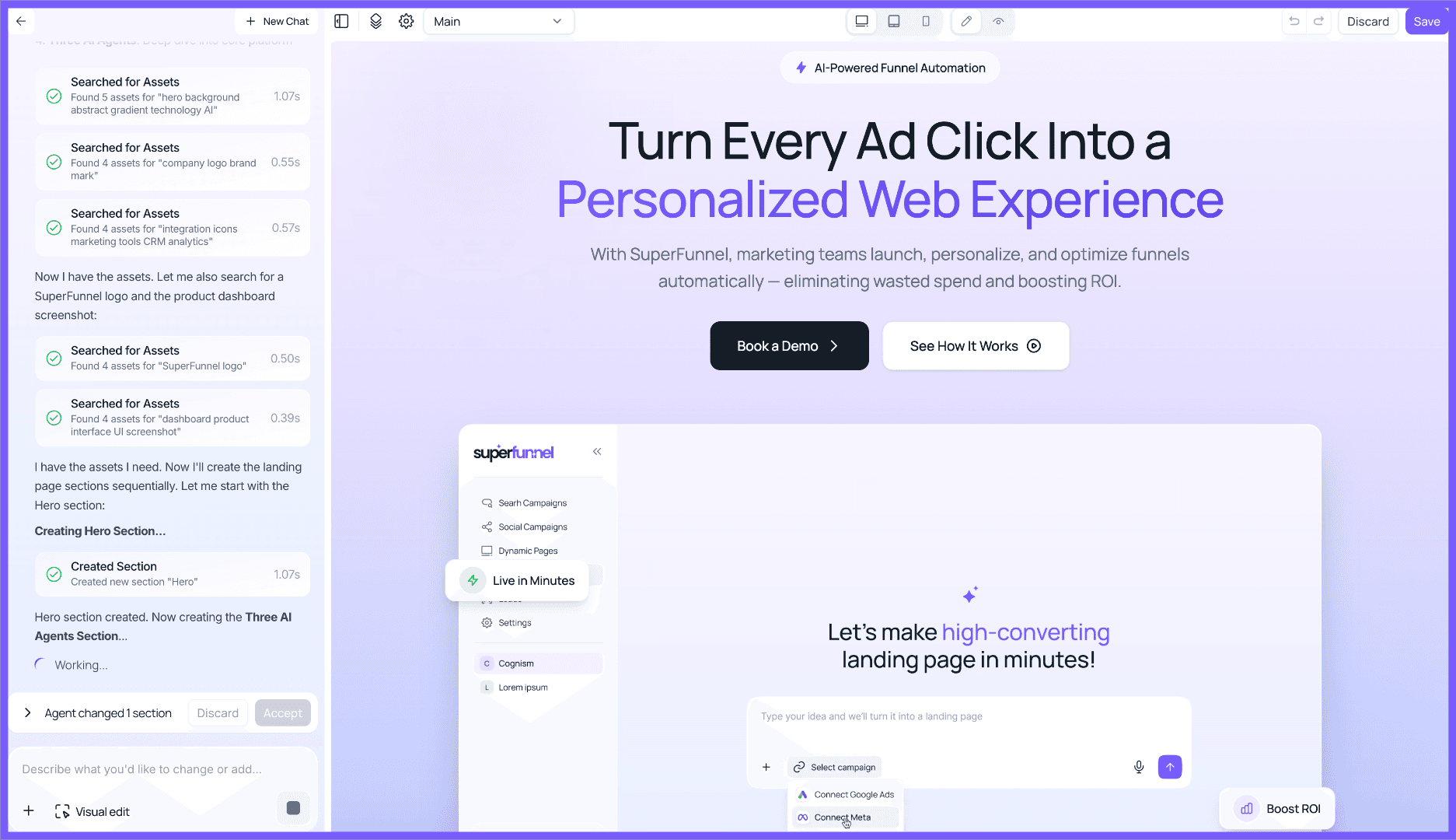
Once complete, review the preview on the right hand side. You can refine the result by sending additional prompts to the SuperAgent or by manually editing sections directly.
Accept changes
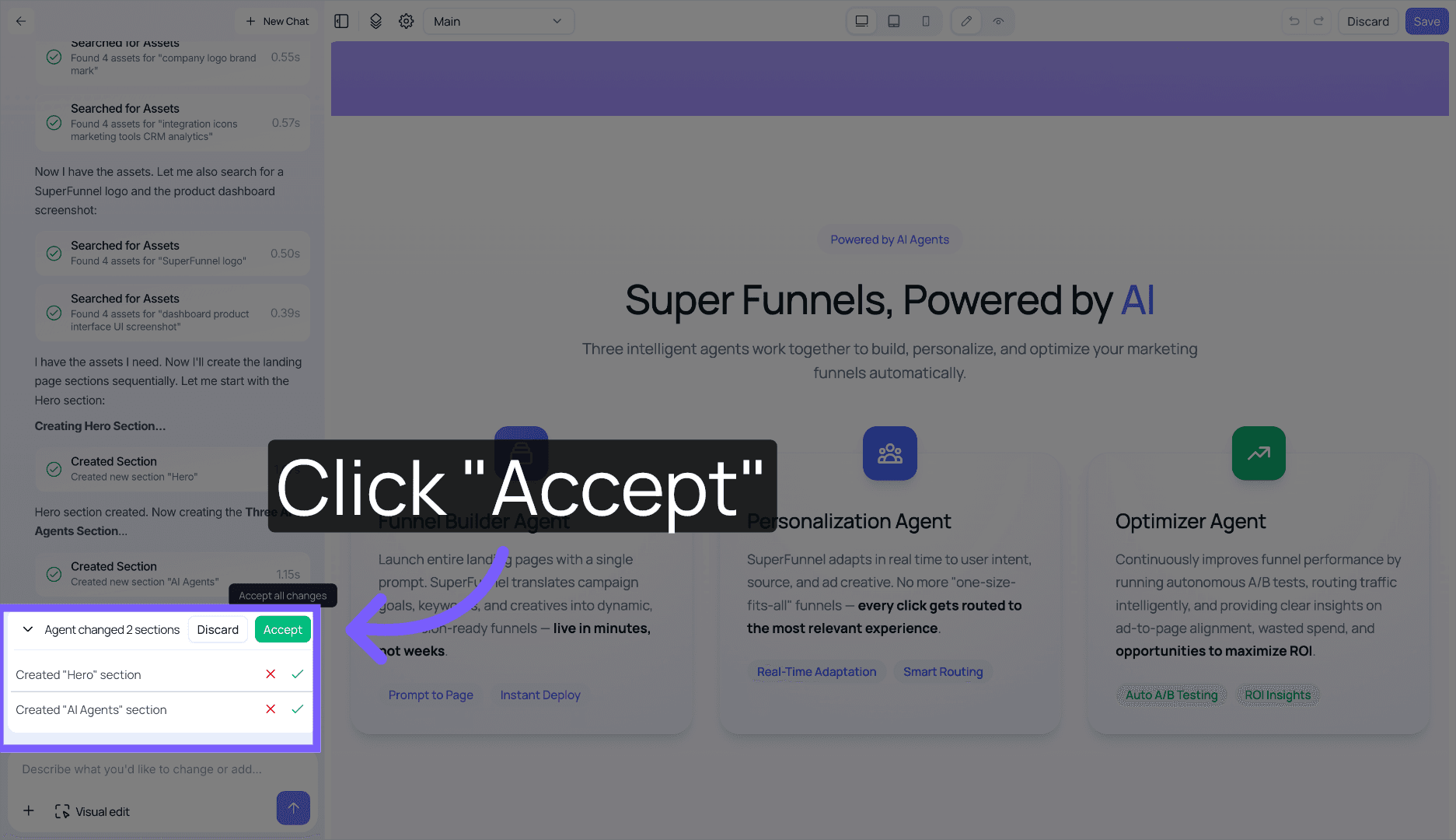
Click Accept to approve all changes, or review and approve/reject each section individually.
New task, new chat
Unless you are continuing to work on the same elements, create a new chat. This prevents the Agent from crashing and improves results.
Save your progress
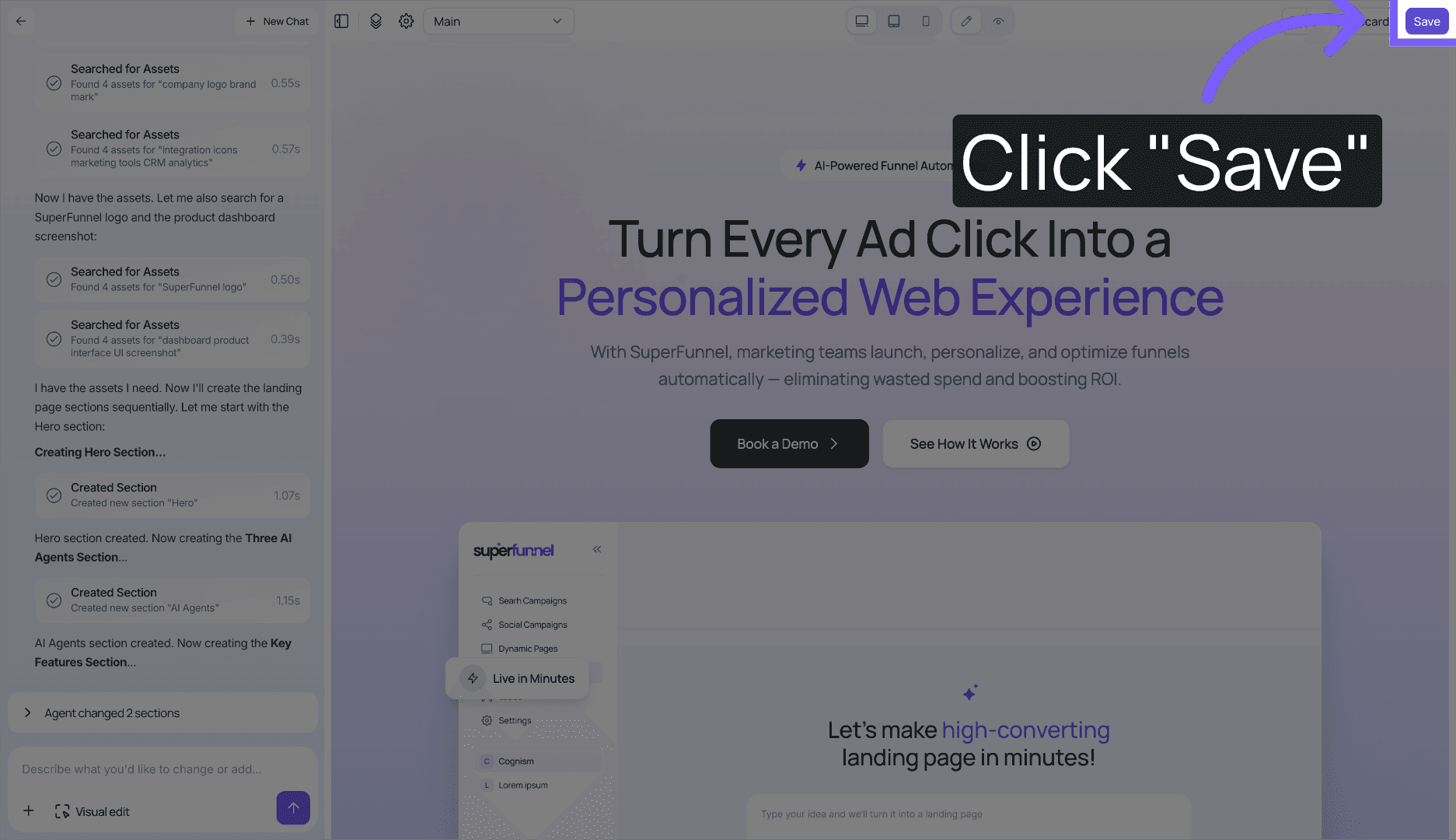
Click Save to store the current state of your page.
Publish your page
Go back to your pages list and find your new page. Click Publish in the top right corner — a screen will appear. Set a version number, add a description (e.g. "First page design" or a short summary of your prompt), then click Publish to make your page live.
Summary
Your page is now created, reviewed, and published. Before going live, read Page Views to understand how to preview your page across different environments and what to check before publishing. To make further edits without the SuperAgent, see Manually Edit Pages.