

Pages > Create
Custom Code
Add tracking, pixels, and other integrations to your pages and quizzes.
Overview
Custom code lets you inject scripts directly into your pages and quizzes. This is most commonly used to add tracking tools such as Google Tag Manager (GTM) or Meta Pixel, but you can inject any valid HTML, JavaScript, or third-party snippet.
Scripts can be placed in the header or the body, and can be scoped globally or targeted to specific pages and quizzes.
Global vs Page / Quiz Level
Custom code can be managed at two levels:
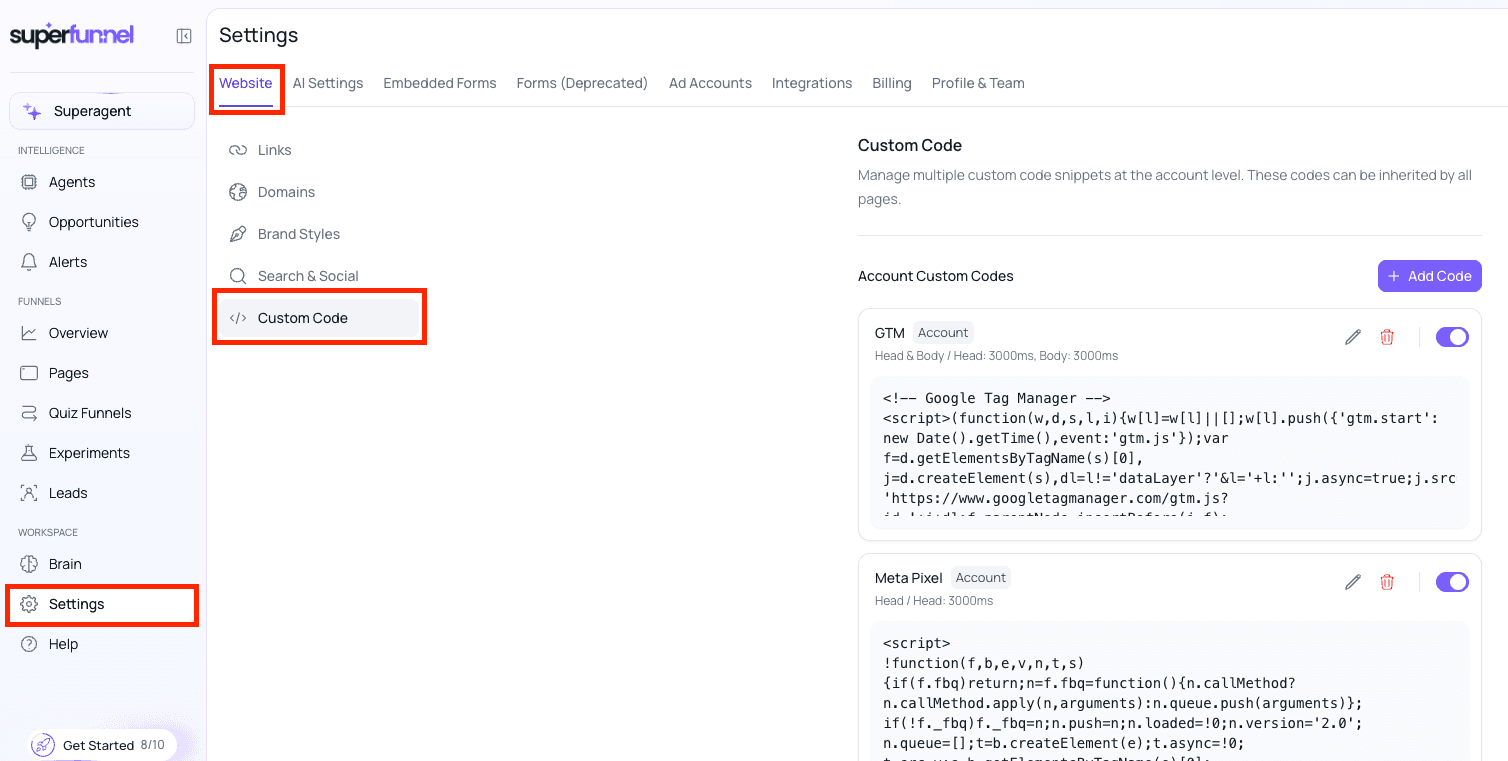
Global — applies to all pages and quizzes at once.
Navigate to Settings → Website tab → Custom Code.
Use this for scripts you want running everywhere, like your GTM container or a base Pixel.
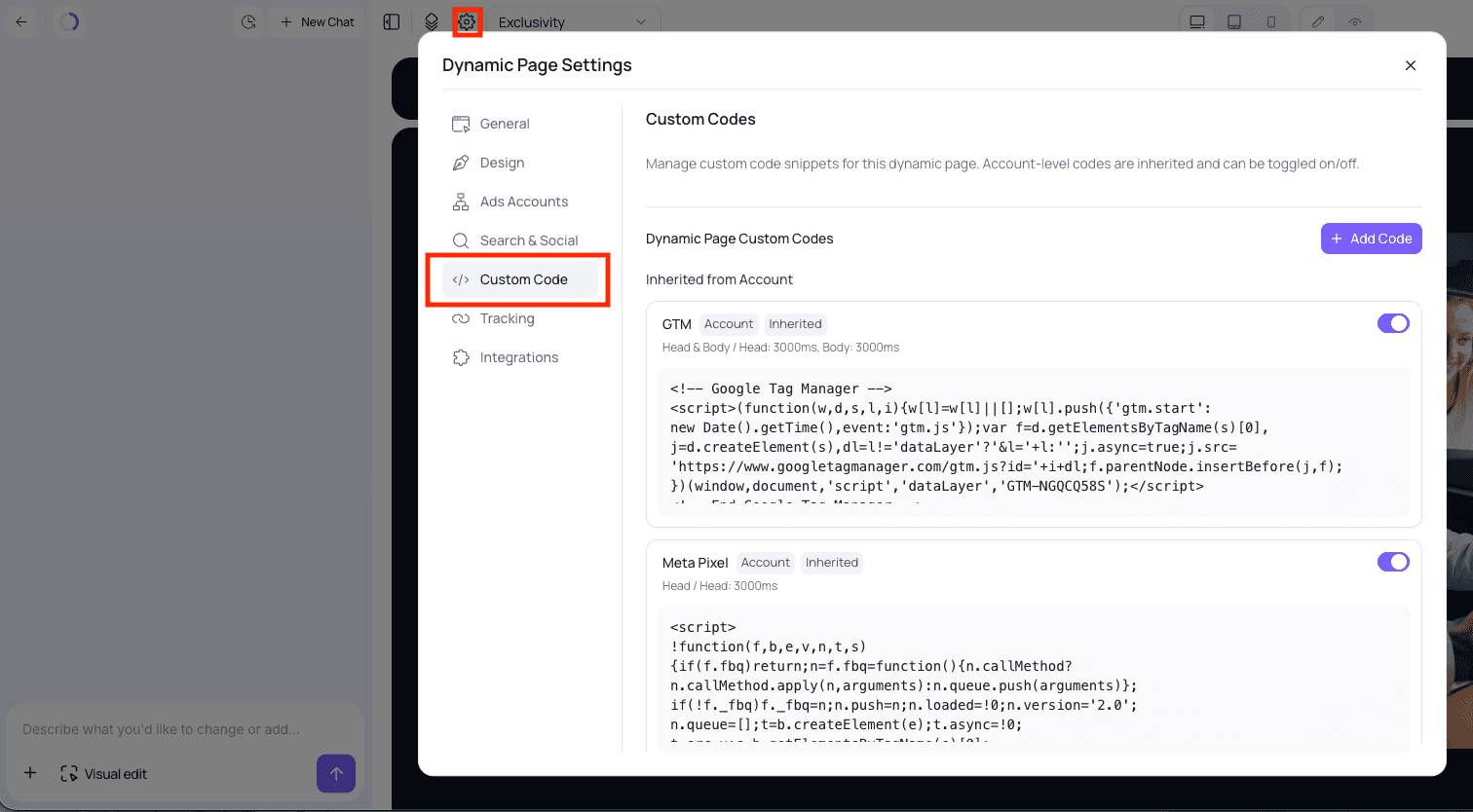
Page / Quiz level — applies to a single page or quiz only.
Open the page or quiz editor, click the cog wheel icon in the top-left corner to open Page or Quiz Settings, then click the Custom Code tab.
Use this for scripts that are specific to one campaign, offer, or test.
A useful pattern
Add your script at the global level but leave it disabled. Then enable it only on the specific pages or quizzes where you need it. If you ever need to update the script, you only have to edit it in one place — globally.
Adding a Custom Code Snippet
The process is the same whether you are working at the global or page / quiz level — once you are on the Custom Code tab:
Click + Add Code
A popup will appear for you to configure the new snippet.
Give it a name
Enter a descriptive name so you can identify the snippet later (e.g. "GTM Container", "Meta Pixel — Lead Event").
Set enabled or disabled
Toggle the snippet on or off. Disabled snippets are saved but not injected — useful for preparing a script before it is needed.
Add your code and choose injection location
Paste your script and select where it should be injected:
- Header — injected into the
<head>of the page. Use for scripts that need to load before content (e.g. GTM, analytics initialisation). - Body — injected into the
<body>. Use for scripts that interact with page elements.
Wait
Add a 1 ms delay to body scripts. Body code may reference elements that have not yet rendered.
Consider additional delay if your script interacts with many elements or may slow down the page.
Click Add Code
The snippet is saved and will be injected according to its enabled state and location setting.
Save
Remember to save changes to pages or quizzes when you're ready for them to go live.
Managing Snippets
Once added, you can return to the Custom Code tab at any time to:
- Enable or disable a snippet without deleting it
- Edit the name, code, or injection settings
- Add more snippets — there is no limit to how many code snippets can run on a page or quiz
This makes it easy to keep a library of scripts ready and turn them on or off as campaigns change.
Summary
Custom code snippets are a powerful way to add tracking and integrations to your SuperFunnel pages and quizzes. Speak with a SuperFunnel Agent if you want to learn more.