

Pages > Manage
Page Variants
Create and manage multiple versions of a page — for campaigns, experiments, scheduling, or safe development — all hosted at the same URL.
Overview
A page can have any number of variants. Each variant is a separate version of the page hosted at the same endpoint — visitors only ever see one URL, and SuperFunnel controls which variant they land on.
Variants split your audiences. The primary purpose of a variant is to serve a tailored experience to a distinct audience segment — for example, one variant for English-speaking visitors and another for Spanish-speaking visitors, each with localised copy and imagery. If no Smart Traffic rules are set, traffic is distributed equally across all active variants.
Variations split your traffic within a variant. When you run an Experiment, you create variations inside a single variant — different designs shown to the same audience to find which performs best. The original design is the control; any modified version is a treatment.
Variants are also useful for:
- Campaign-specific versions — build a dedicated variant for a particular ad, audience, or promotion without changing your default page
- Scheduled content — show a different variant at specific times or dates, such as a weekend offer or a limited-time campaign
- Development and testing — keep a work-in-progress variant separate from the live one so you can build and test without affecting real traffic
What this guide covers:
- Duplicating a variant
- Naming and describing a variant
- Scheduling a variant to appear at set times
- Deactivating a variant
- Duplicating a variant as a new page
Managing Variants
Regularly review your variants to keep your page organized and performant. Remove outdated variants to find relevant variants quicker.
Special Event Variants
Consider creating variants for special events, such as holidays or seasonal promotions. Use the scheduling feature to show these variants during the relevant time periods, ensuring content is timely and engaging.
Duplicating a Variant
Every page starts with one variant. To create a second, duplicate the existing one — this copies the page design as a starting point, which you can then edit independently.
Open your page
From the Pages list, click your page to open its variant overview.
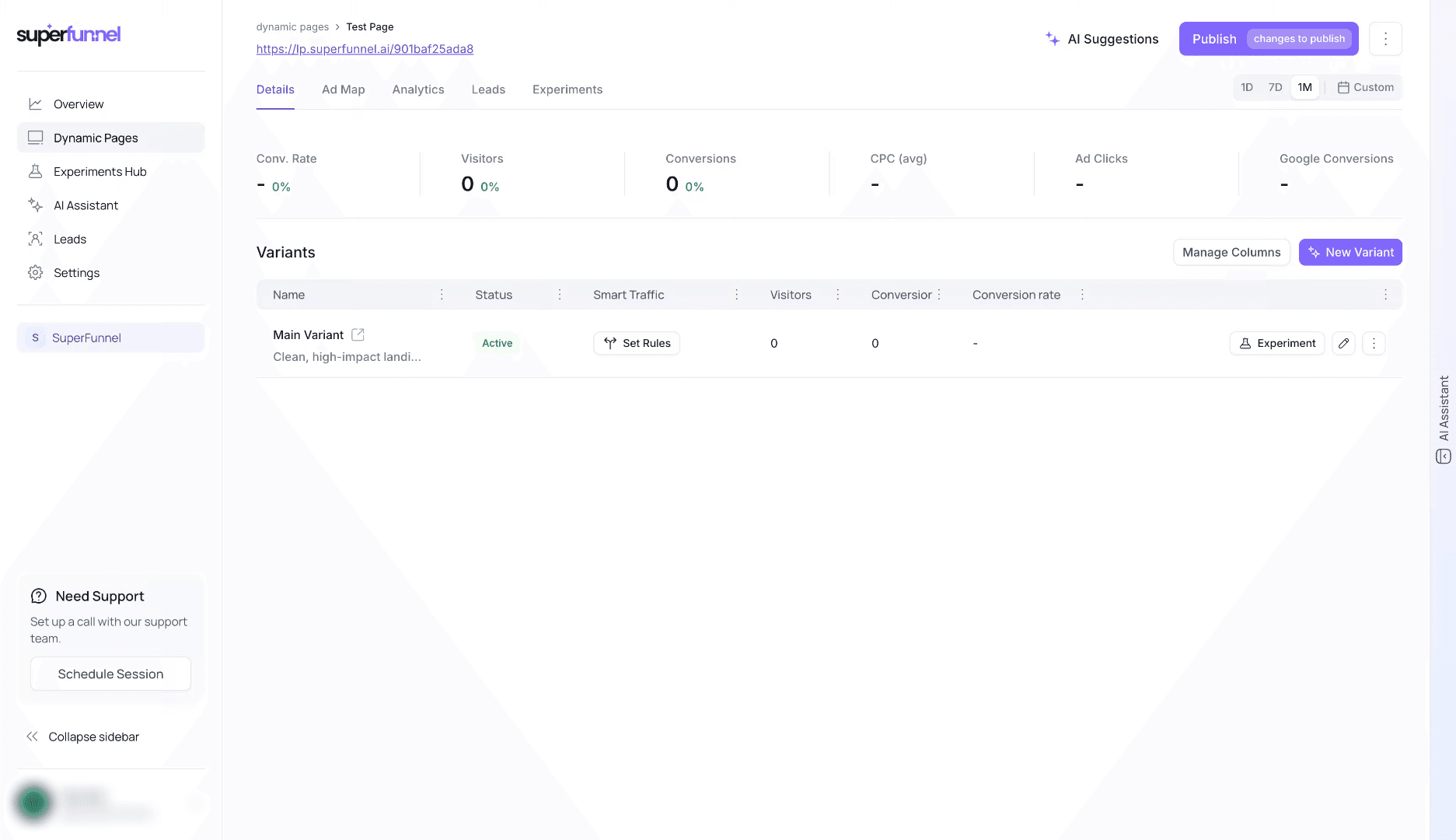
Duplicate a variant
Click Duplicate Variant on the variant you want to copy. A new variant is created with the same content.
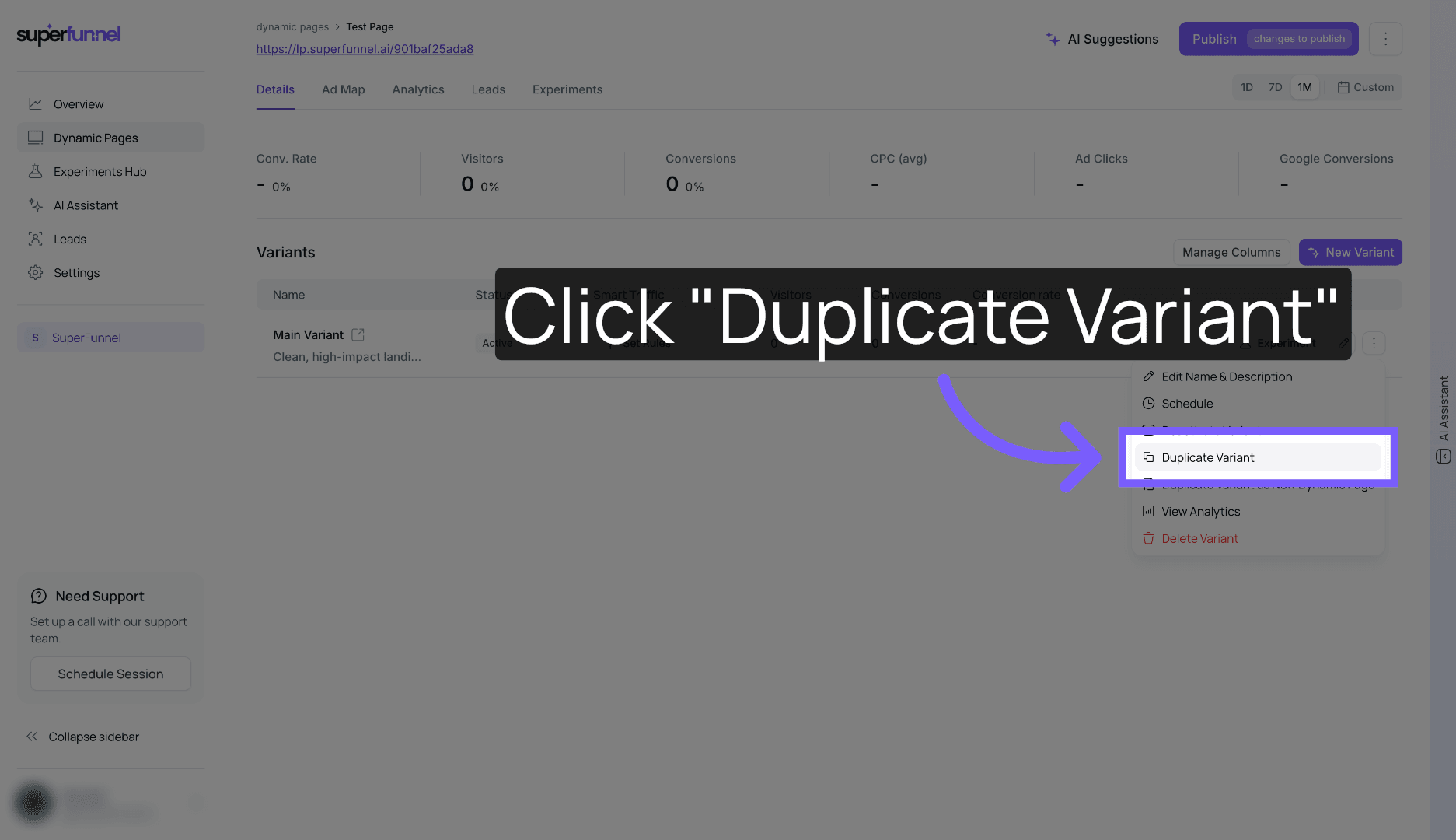
Active variants are duplicated as active
If the original variant is active, the duplicate will also be active immediately — meaning real visitors could be sent to it before you've made your edits. Deactivate the new variant before making changes to avoid sending users to a work in progress.
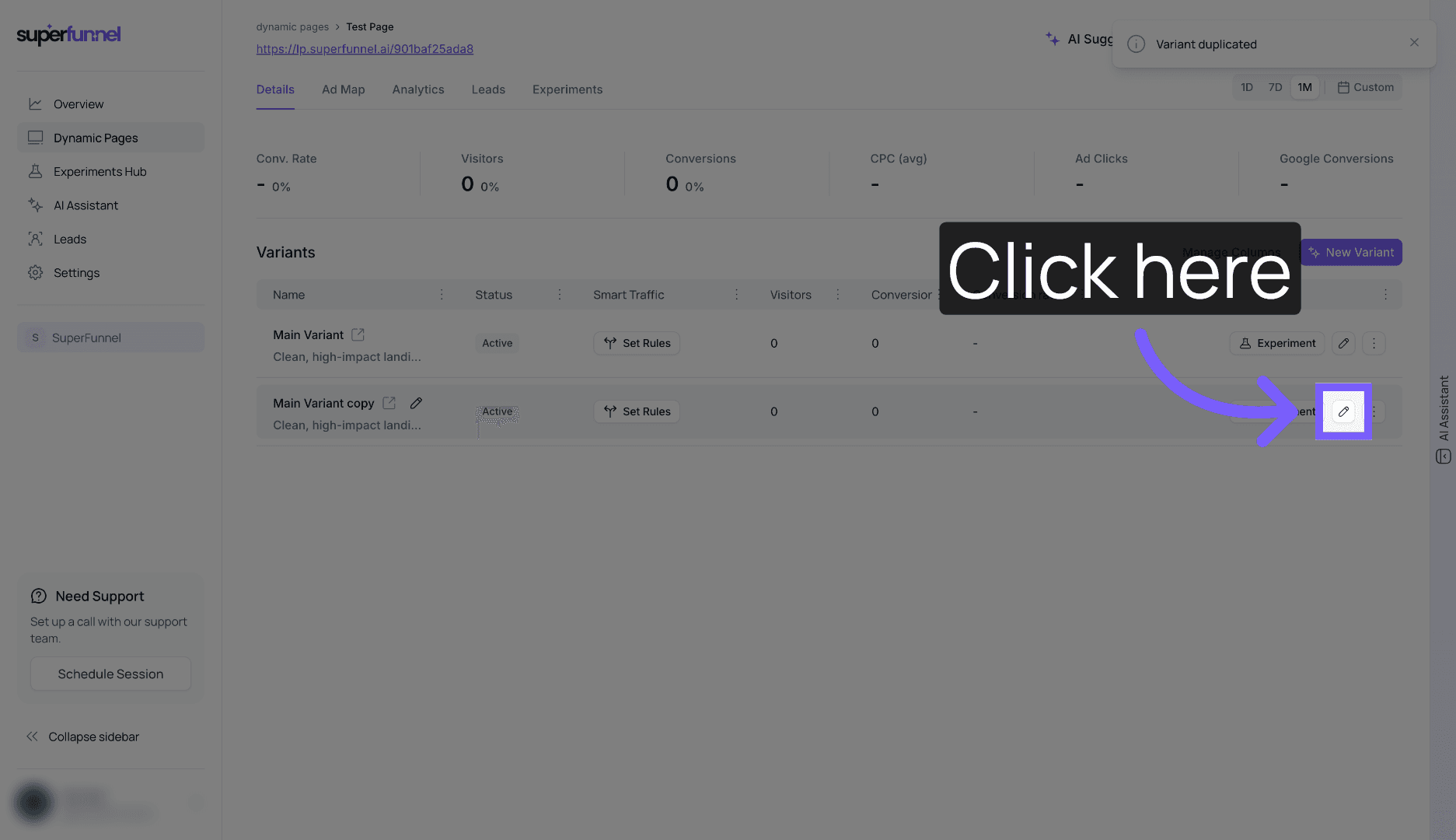
Open variant options
Click the three dots (⋮) next to the new variant to open its options menu.
Rename the variant
Select Edit Name & Description and update the name to reflect its purpose — for example, "Weekend Offer", "Test — New Headline", or "Dev".
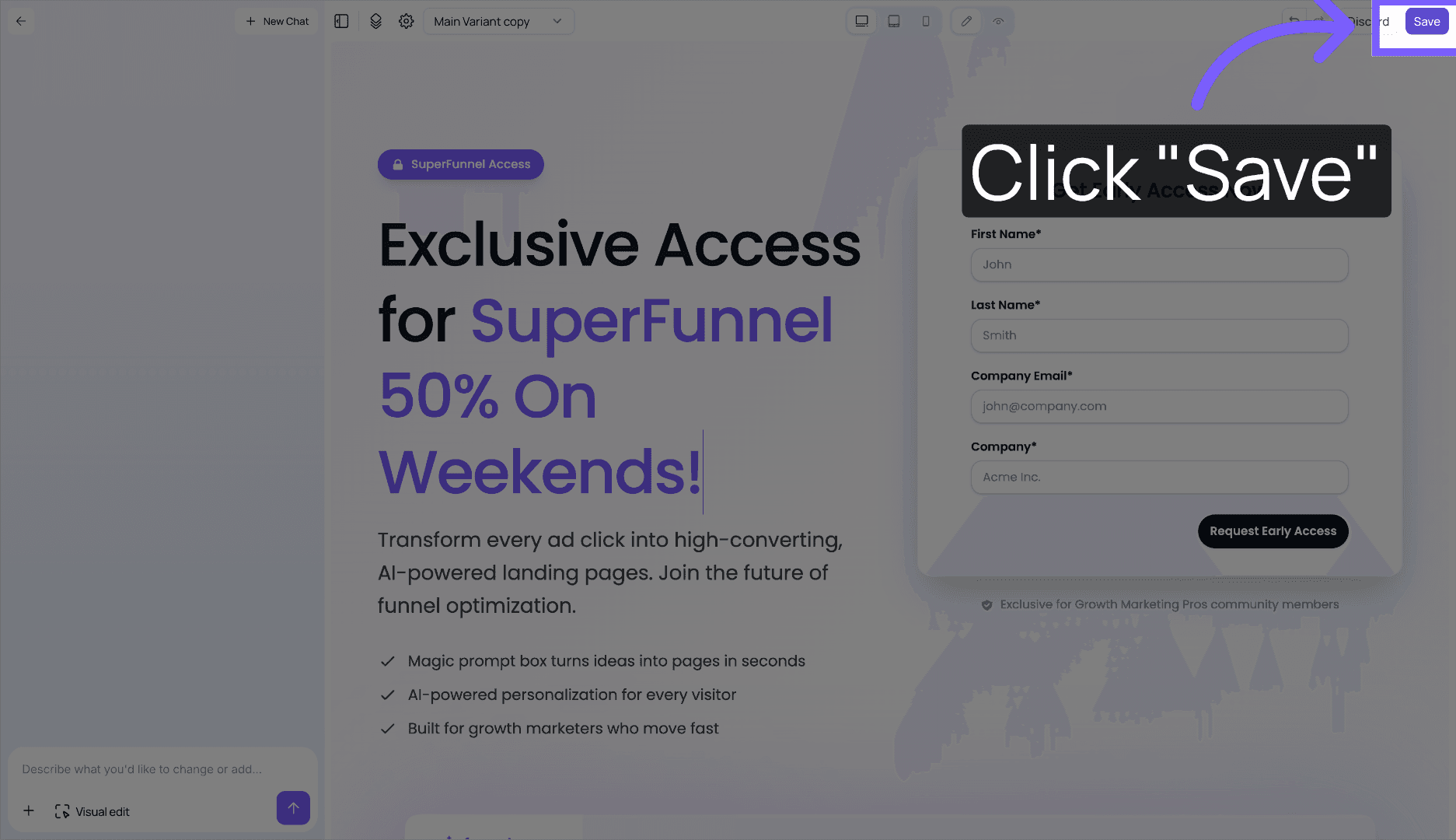
Save
Click Save to store the variant name and description.
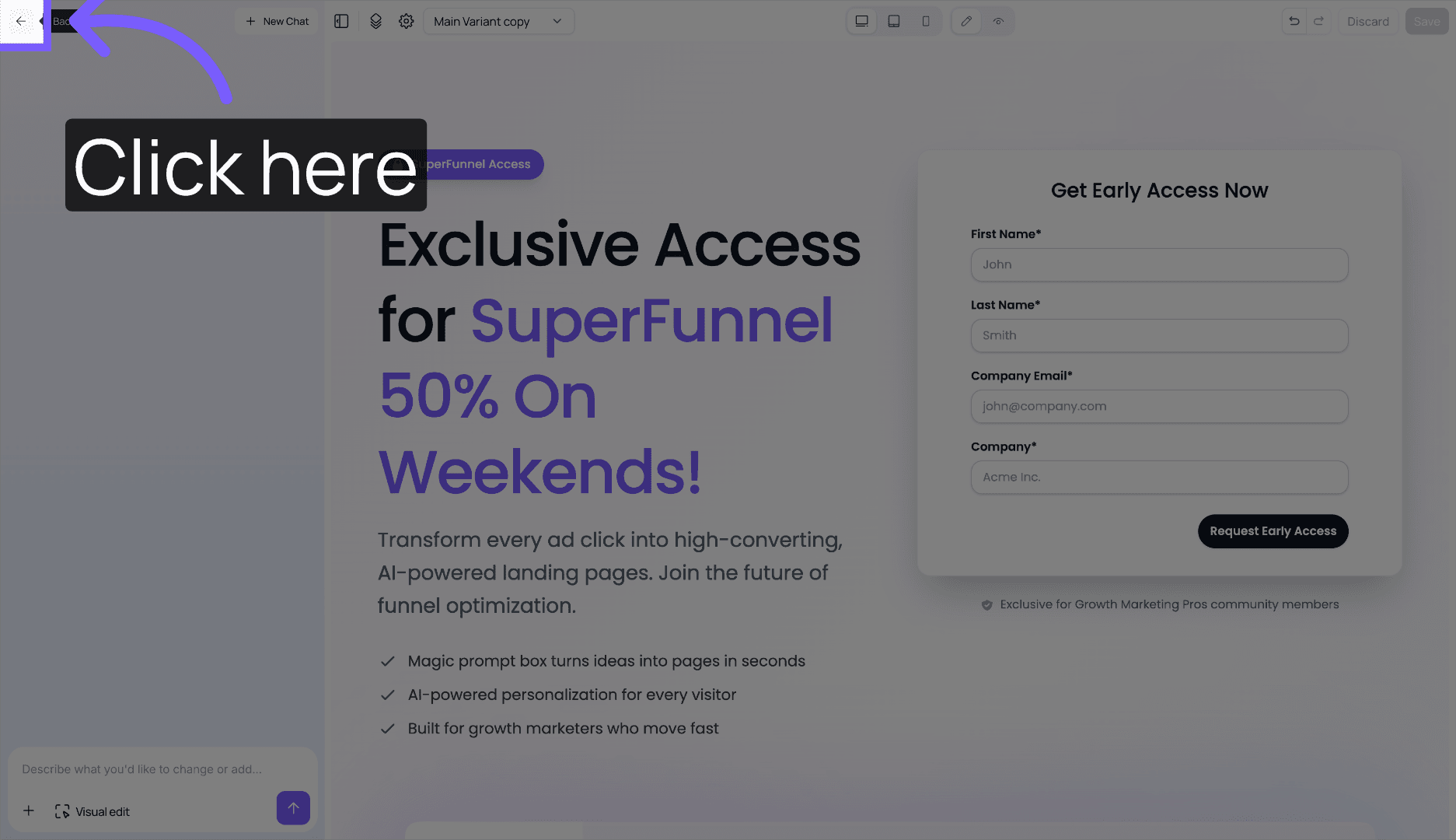
Edit and publish
Open the variant to make your changes, then publish when ready.
Variant Options
Once a variant exists, click the three dots (⋮) next to it to access the following options.
Edit Name & Description
Update the variant's name and description at any time. Use descriptive names — especially once you have several variants — so it is easy to identify which is which.
This is also where you'll find the Path (optional) field, which gives the variant its own direct URL at domain/path/subpath instead of sharing the page's default URL. See Page URLs for when a subpath is useful and how it interacts with Smart Traffic.
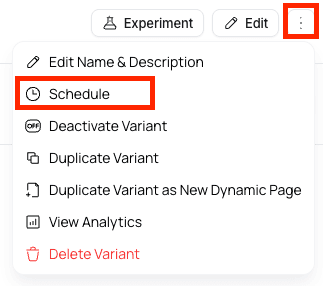
Schedule
Want to schedule one page variant to only show during business hours, and another for off hours? Or maybe you have a holiday promo page ready, and you want it to drop at midnight on the eve of the holiday. Scheduling lets you set the days and times a variant should be shown — outside that window, it steps aside and your other active variants are shown instead.
Keep the scheduled variant and its fallback(s) active
A schedule controls when a variant is eligible to show. The variant must stay active for its schedule to take effect, and any variant you expect to fall back to outside the schedule must also stay active.
Open the schedule panel
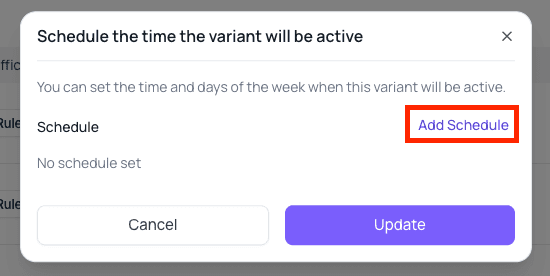
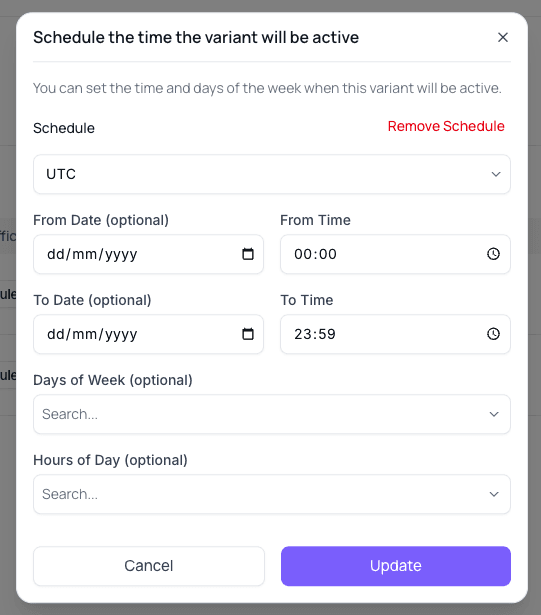
Click Schedule on the variant, then click Add Schedule to open the schedule builder.
Configure the schedule
Fill in the schedule details:
- Timezone — the timezone all times in this schedule are relative to (e.g.
UTC,America/New_York) - From date (optional) — the calendar date from which this schedule becomes active
- From time (optional) — the time of day the variant starts showing on active days
- To date (optional) — the calendar date after which this schedule stops being active
- To time (optional) — the time of day the variant stops showing on active days
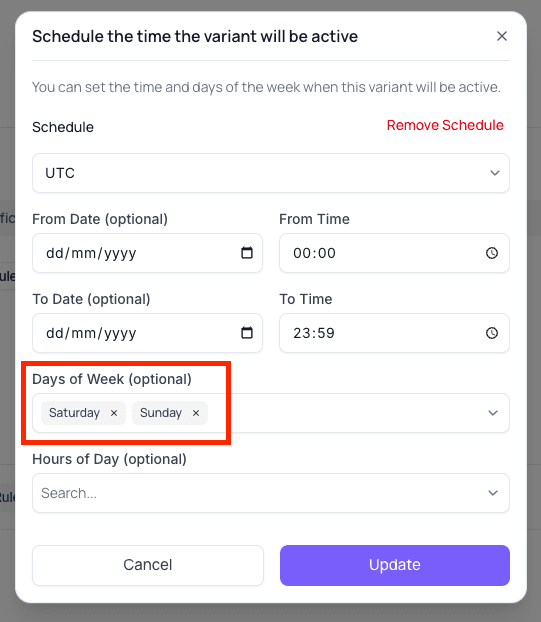
- Days of week — select which days this variant should be shown (e.g. Saturday only)
- Hours of day — optionally restrict to specific hours within each active day
The example below schedules a variant to show only on Saturdays and Sundays based on the UTC timezone. On Monday, other active variants will be shown instead.
Save the schedule
Click Update to save. Then publish your changes. After publishing changes, the variant will automatically be shown during the scheduled window, and active, fallback variants will be shown outside of it.
Don't forget
Click Remove Schedule if you want the variant to be displayed at all times. Alternatively, deactivate (or delete) the variant to not display it ever — just be sure the variant(s) you want to show in its place are active first.
Deactivate Variant
Deactivating a variant removes it from live traffic without deleting it. Use this to pause a campaign variant or temporarily hide a test without losing its content. You may activate the variant if it becomes relevant again in the future.
Duplicate as New Page
Creates a full copy of the variant as an independent new page. Useful when a variant has evolved significantly and you want to use it as the foundation for a separate campaign or experience.
Summary
Variants give you full control over what visitors see — whether for campaigns, A/B tests, scheduled content, or safe development. The next section, Smart Traffic, describes how to route visitors to specific variants based on rules such as their location, the ad they came from, or other conditions.