

Pages > Manage
Page URLs
Define a page or quiz's URL by setting its path, alternate paths, and the domains it's served on.
Overview
domain + path + optional subpath = full URL.
A page's full URL (superfunnel.ai/lead-generation-pages) is made up of a domain (such as superfunnel.ai) and a path (such as lead-generation-pages). A variant of that page can add its own subpath on top, for example superfunnel.ai/lead-generation-pages/spring-promo.
This page covers how to define that URL from a page or quiz's settings: set the primary path, add alternate paths that redirect to it, and choose which domains the page is served on.
To connect a new custom domain to your workspace, see the Domains onboarding guide. This page assumes those domains are already connected.
Consolidating traffic onto one primary URL also helps that page perform in search. See Page Best Practices for why this matters.
Open Page Settings
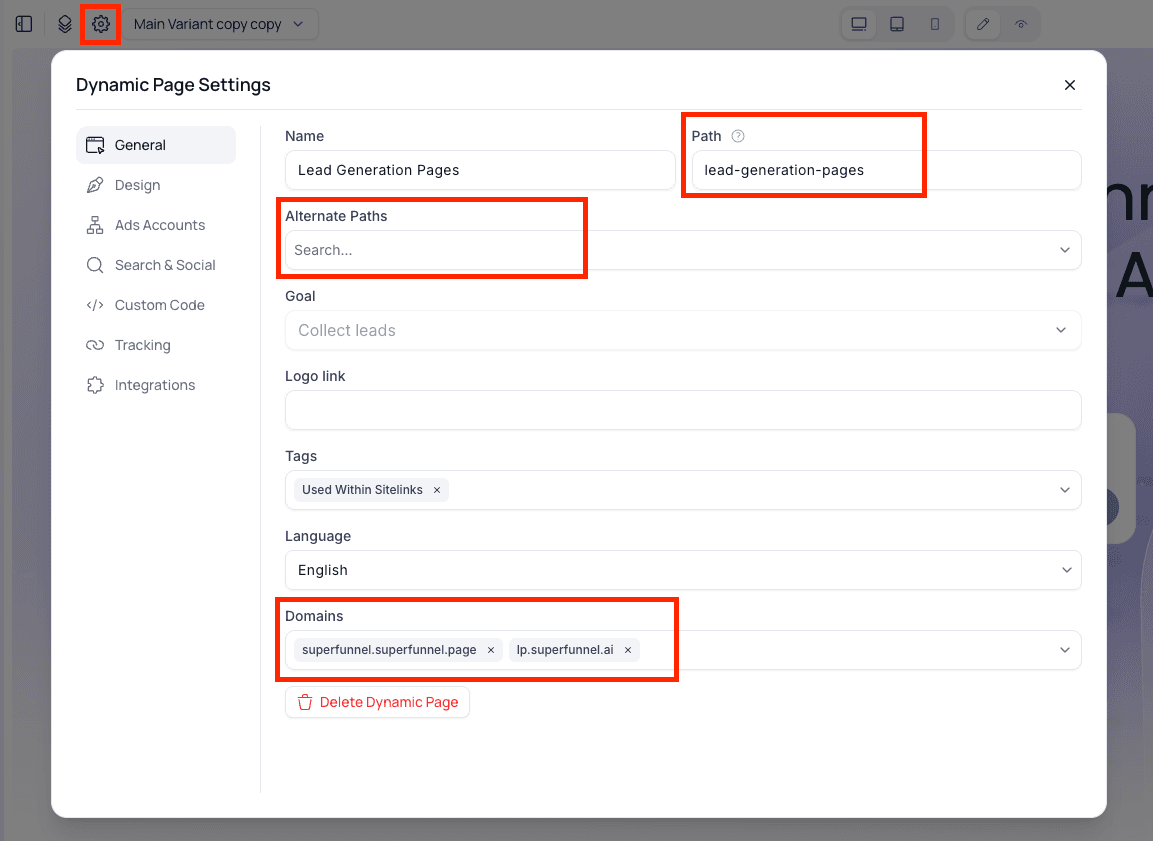
Open the page or quiz in the editor and click the ⚙ cog icon in the top-left corner to open Dynamic Page Settings. The Path, Alternate Paths, and Domains fields are all on the General tab.
Set the Path
The Path field sets the page's primary path, the one used in its main URL alongside the domain.
Edit the Path field
In the Path field, type the path you want the page to use.
Save
Save your settings. The page is now served at the new path.
Changing an existing path
If the page is already live, changing its Path moves its URL. Visitors using the old URL will no longer reach the page unless you add it as an alternate path.
Add or Swap Domains
A page can be served on one or more domains. Use the Domains field to add a new domain or change which domains a page uses.
Add a domain
Click the Domains dropdown and select a domain. Added domains appear as chips in the field.
Remove a domain
Click the × on a domain chip to stop serving the page on that domain. Swapping a domain is simply removing one and adding another.
Save
Save your settings. The page is now served on the selected domains.
Connecting a new domain
Only domains already connected to your workspace appear in the dropdown. To connect a new custom domain first, see Domains.
Add Alternate Paths
Alternate paths are extra paths that redirect to the page's primary Path. Use them for different capitalizations, common misspellings, hyphenated vs. unhyphenated versions, or short aliases you share in print.
Open the Alternate Paths field
In the Alternate Paths field, type a path you want to point to this page.
Add each path
Add as many alternate paths as you need. Each one redirects to the primary URL.
Save
Save your settings to apply the redirects.
Examples
free-quote,freequoteandfree_quotesfor the same page- A short path used in a print ad or on a business card:
get-startedalongside your full campaign URL - Common misspellings of a brand name or campaign term
Add a Subpath to a Variant
By default, every variant of a page is served at the same URL, domain + path. Visitors landing on any variant see that one URL, and SuperFunnel decides which variant to show behind the scenes.
Adding a subpath gives one variant its own direct URL, at domain/path/subpath.
Open the variant's options
From the page's variant overview, click the three dots (⋮) next to the variant you want to give a subpath, then select Edit Name & Description.
Fill in the Path field
In the Path (optional) field, enter the subpath. The variant is now served at domain/path/subpath.
Save
Save the variant. Its new URL is live immediately.
Subpaths are optional
Most variants don't need a subpath. Smart Traffic already routes each visitor to the right variant at the page's one URL, so a subpath isn't required for that to work.
A subpath can still be useful for SEO or cataloging, for example giving a campaign-specific variant a memorable, indexable URL of its own. Once a variant has a subpath, an ad can link straight to that URL, which also removes the need for a Smart Traffic rule to route that ad's traffic to it.