

Analytics & Leads > Leads
Analytics Export
Export analytics data from SuperFunnel to import results into your BI tools.
Overview
Export analytics data from SuperFunnel to analyse performance, share reports, or use with your BI tools. This page walks through selecting metrics, grouping options, and export formats.
Timing
Download exports after a campaign has run for a full performance view of page variants, clicks, and conversions.
Step-by-Step Guide to Exporting Analytics
Open Analytics Export Options
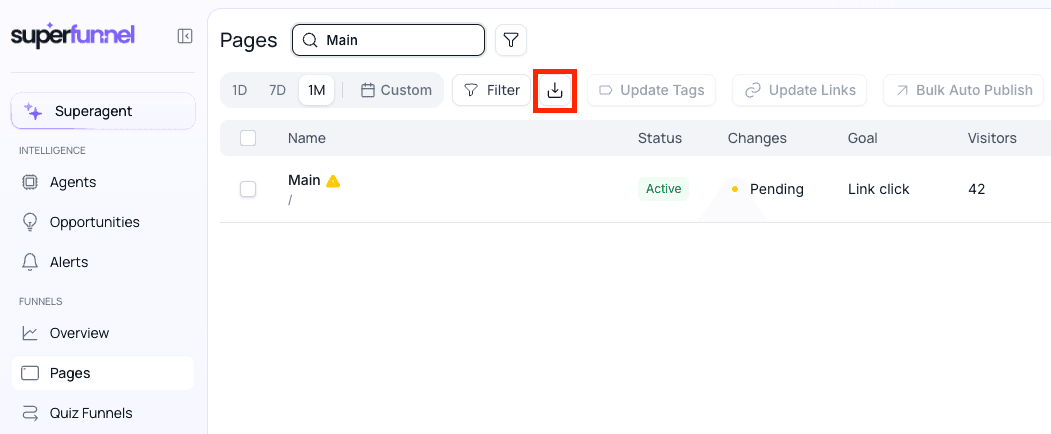
Go to Pages on the left sidebar and click the Export icon in the top-right corner. The Export Analytics panel will open.
Select Date Range
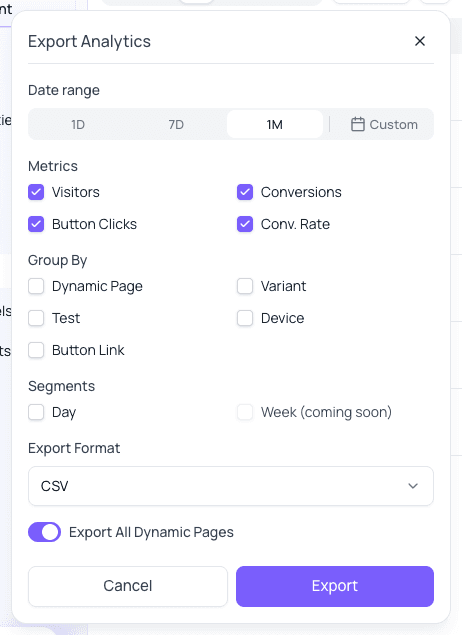
Choose the time range for the data export: 1 Day, 7 Days, 1 Month, or Custom Range.
Choose Metrics
Select the metrics you want included in the export:
- Visitors
- Conversions
- Conversion Rate
- Button Clicks
You can export one or multiple metrics at the same time.
Choose How to Group the Data (Optional)
Group the analytics by a dimension before exporting. Available options:
- Dynamic Page
- Variant
- Test
- Device
- Button Link
Grouping splits your totals into one row per group — for example, grouping by Page gives you a separate row for each page instead of a single combined total.
Choose How to Segment the Data (Optional)
Segment the data by time period to break results into smaller intervals. Available options: - Day — one row per day - Week — one row per week
Use grouping and segmentation together
Grouping and segmentation can each be applied independently or together. Each combination typically adds more rows to your export, giving you finer detail.
For example: a user exports visitors with no grouping and sees 3,000 total visitors.
They then group by Page and find their two pages had 1,000 and 2,000 visitors respectively.
They then segment by Day and discover that 800 of the 1,000 visitors for the first page arrived on a single day — a spike that lines up with a strong ad performance that day.
Without segmentation, that spike would have been hidden in the weekly total.
Choose Export Format
Select the file format you prefer: CSV or JSON.
Export the Data
Click Export. Your analytics file will be generated and downloaded.
Summary
Your exported analytics file is ready for sharing, reporting, or importing into other analysis tools.