

Pages > Create
Editor Layout
Find your way around the page and quiz editor: the toolbar, the SuperAgent panel on the right, and how to show or hide it.
Overview
When you open a page or quiz to edit, the left navigation stays in view and the SuperAgent panel opens on the right. You can build by chatting with SuperAgent, edit the page directly, or do both side by side.
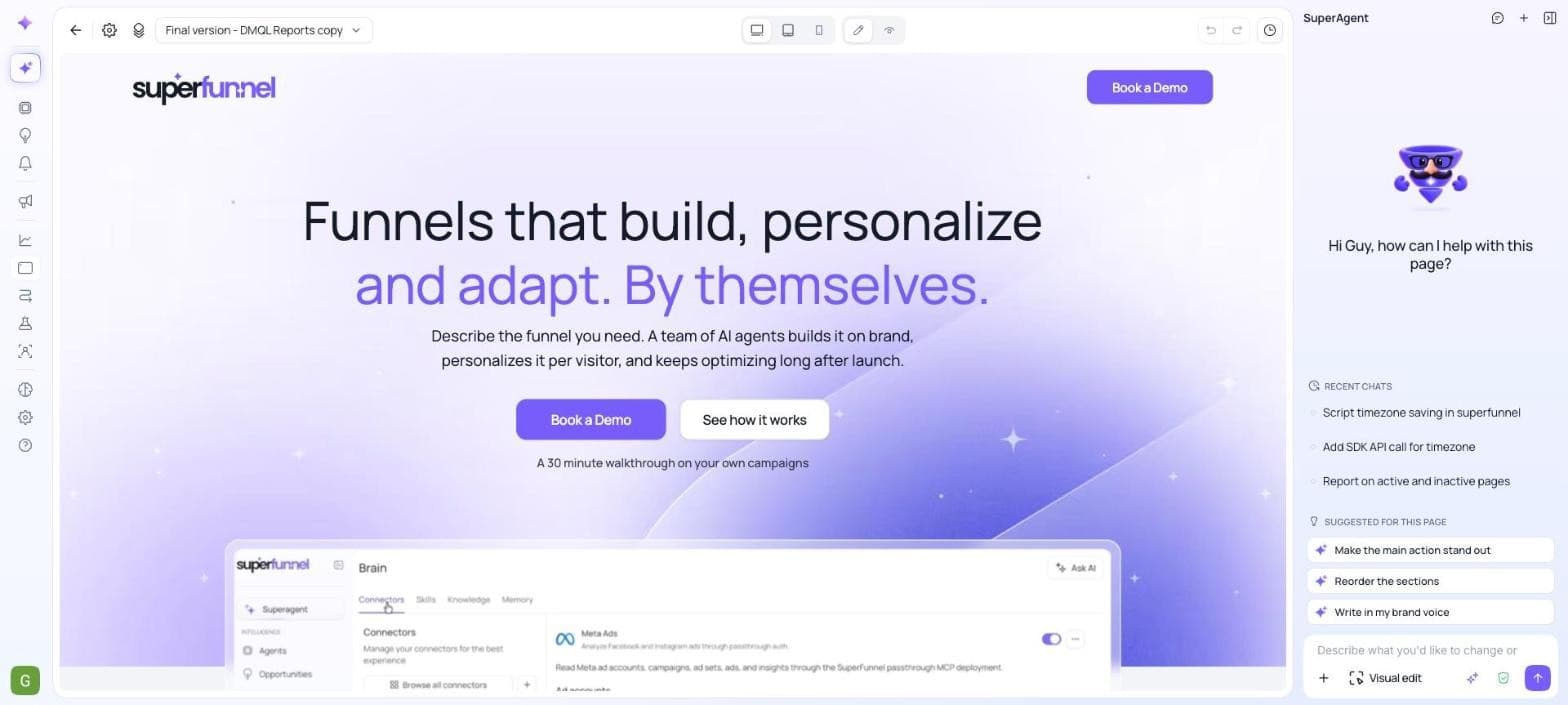
The Toolbar
Along the top of the editor:
- Back — return to the page's details.
- Page settings (gear) — open the page's settings, such as its name, path, domains, custom code, and tracking. Quizzes have Quiz settings and a Data layer button next to it.
- Sections — open the list of all sections on the page.
- Variant dropdown — switch between the page's variants and experiment variations without leaving the editor.
- Desktop, Tablet, and Mobile — preview how the page looks on each screen size.
- Pencil and eye — switch between editing the page and previewing it as a visitor sees it.
- Undo and Redo — step backward or forward through your changes.
- Snapshots (clock) — save and restore your work in progress. See Snapshots.
Quizzes also have Steps, Discard, and Publish
The quiz editor shows a Steps list beside the quiz, and Discard and Publish buttons in the toolbar. Pages are published from the page's details view.
The SuperAgent Panel
The panel on the right is where you tell SuperAgent what to change. It knows which page or quiz you have open.
- Describe what you'd like to change or add — type your request and click send.
- Add context (+) — attach files, images, or other context for SuperAgent to work from.
- Visual edit — click an element on the page to point SuperAgent at exactly what you mean.
- Model — the sparkle button shows the AI model in use, Auto by default. See Agent Settings.
- Approval mode — the shield button shows how SuperAgent asks for approval, Default Approvals by default. See Agent Settings.
- Recent chats and suggestions — pick up an earlier chat, or start from a suggestion made for the page you have open.
- Chat history and New chat — the icons at the top of the panel open your past chats or start a fresh one.
Show and Hide the Panel
Hide the panel when you want more room for the page, and bring it back whenever you need it.
- Hide it — click the eye icon to preview the page. The panel and the editing controls disappear, and the page fills the screen. You can also click Close agent panel at the top of the panel.
- Bring it back — click the SuperAgent mascot. It stays in the corner of the screen so it is always within reach, and you can choose where it sits in Customizing Your Interface.
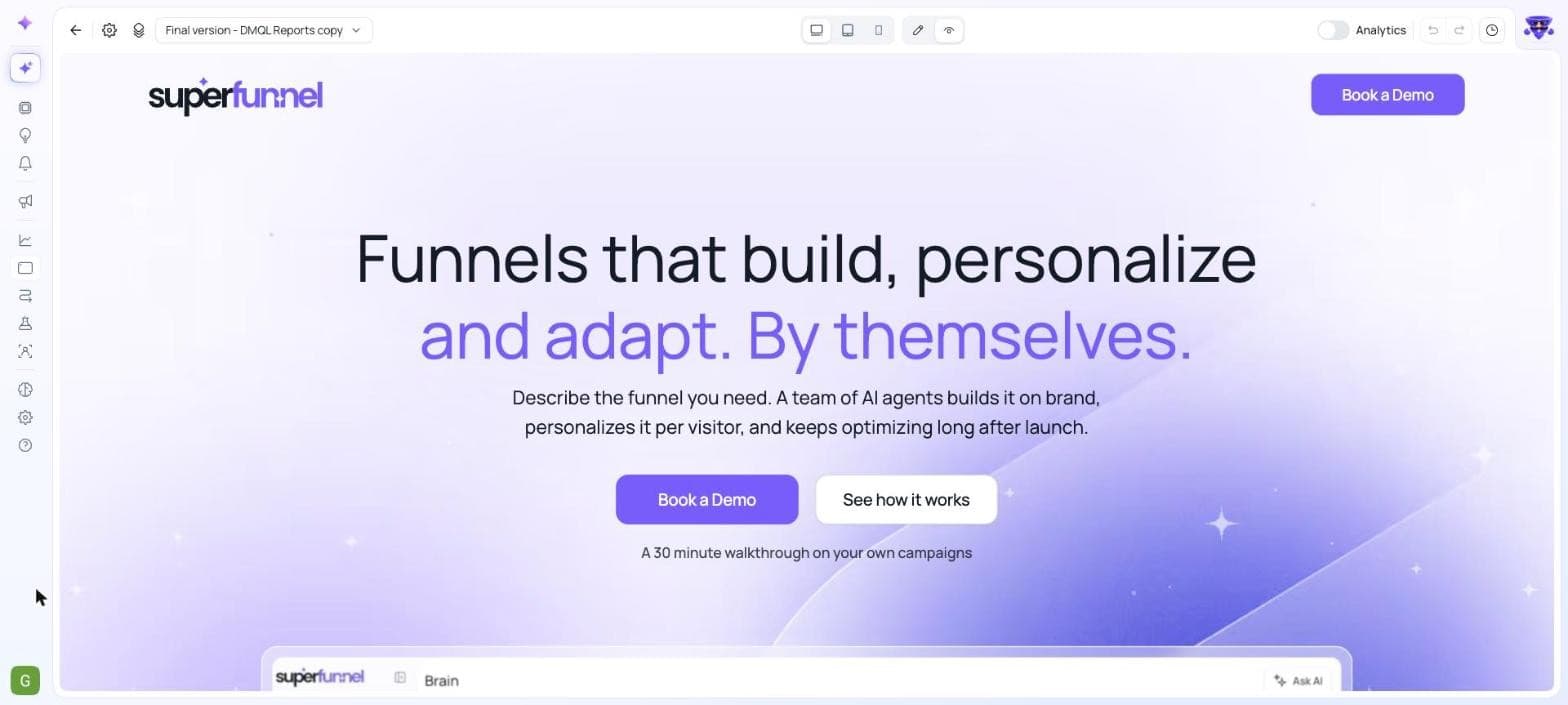
Preview Mode and Analytics
In preview mode, turn on the Analytics toggle to overlay your page's analytics on the page itself, for the date range you choose. See Page Analytics.
Summary
The editor keeps your navigation on the left and SuperAgent on the right. Use the toolbar to switch variants, preview devices, and save snapshots, hide the panel with the eye icon for a clean preview, and click the mascot to bring SuperAgent back.