

Ad & Integrations > Advertising
Google Ads
How to connect your Google Ads account within the SuperFunnel platform.
Overview
Connecting your Google Ads account allows you to track and analyze the performance of your pages and quizzes served through ad campaigns. By integrating Google Ads, you can access key metrics such as CPC, ad clicks, and conversions directly within SuperFunnel, enabling you to optimize your campaigns.
Once connected, you can use Google Ads data to direct traffic more precisely, routing visitors to different page variants based on the specific Ad, Ad Group, or Campaign they came from. See Smart Traffic for how to set up these routing rules.
Prerequisites
The person connecting SuperFunnel must have Standard or Admin access to the Google Ads account they want to link.
New to ads?
Read the Advertising Overview first for a plain-English primer on how ads, pixels, and conversions fit together, plus the strategy of optimizing on cheaper traffic before scaling to Google.
Step-by-Step Guide to Connecting Google Ads
Open Ad Accounts settings
Go to Settings → Integrations → Ad accounts. This is where you manage connected advertising accounts.
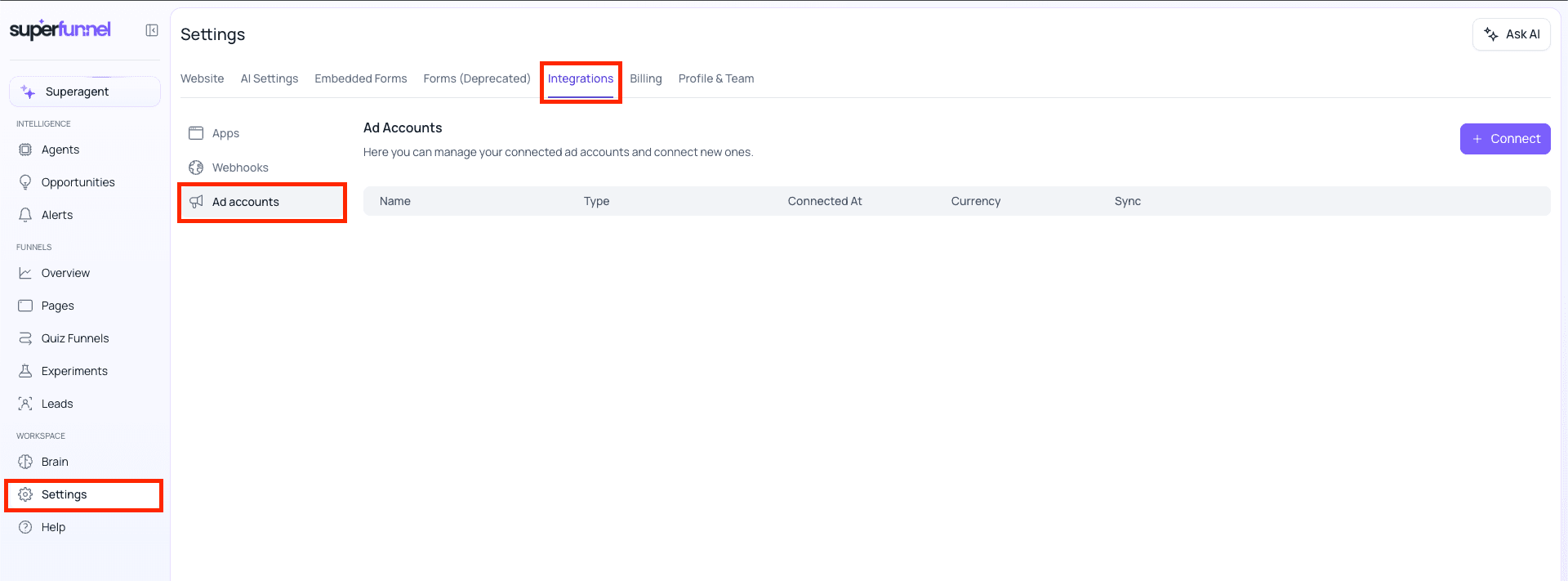
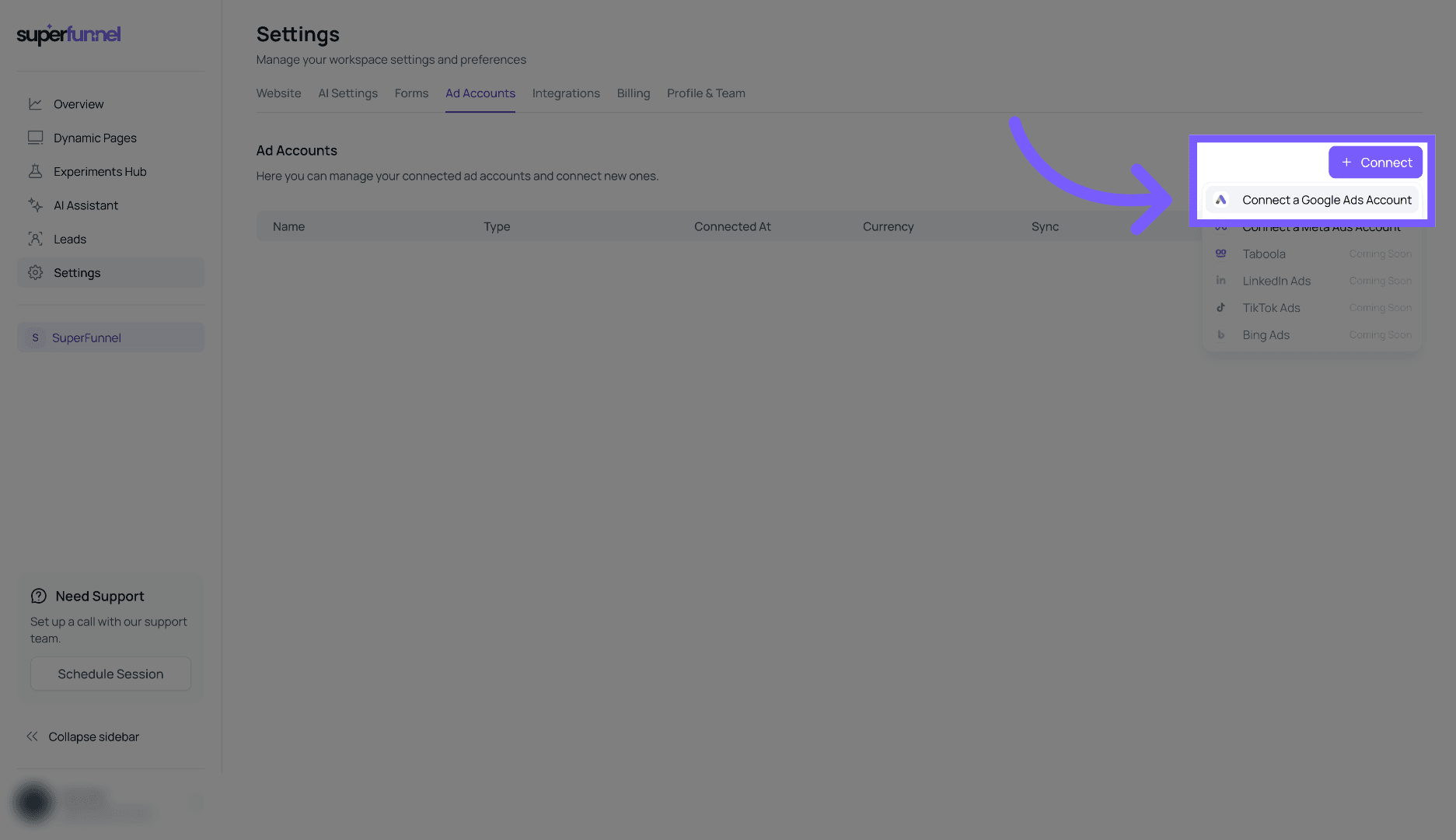
Initiate Google Ads Connection
Click + Connect and then Connect a Google Ads Account to start linking your profile to SuperFunnel.
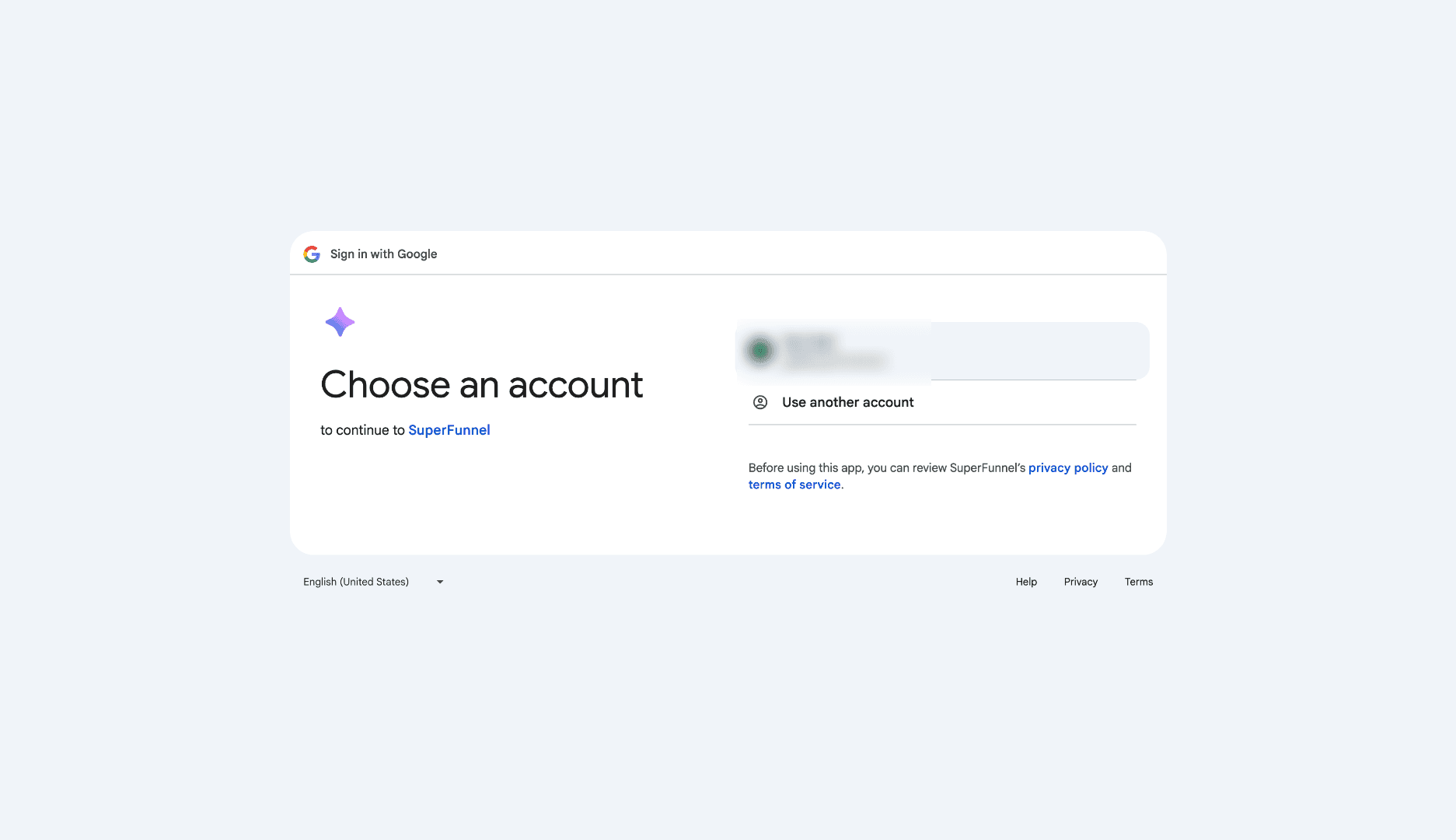
Switch to Google Account Login
On the Google Account Selection screen, choose the email address that's connected to your ad account.
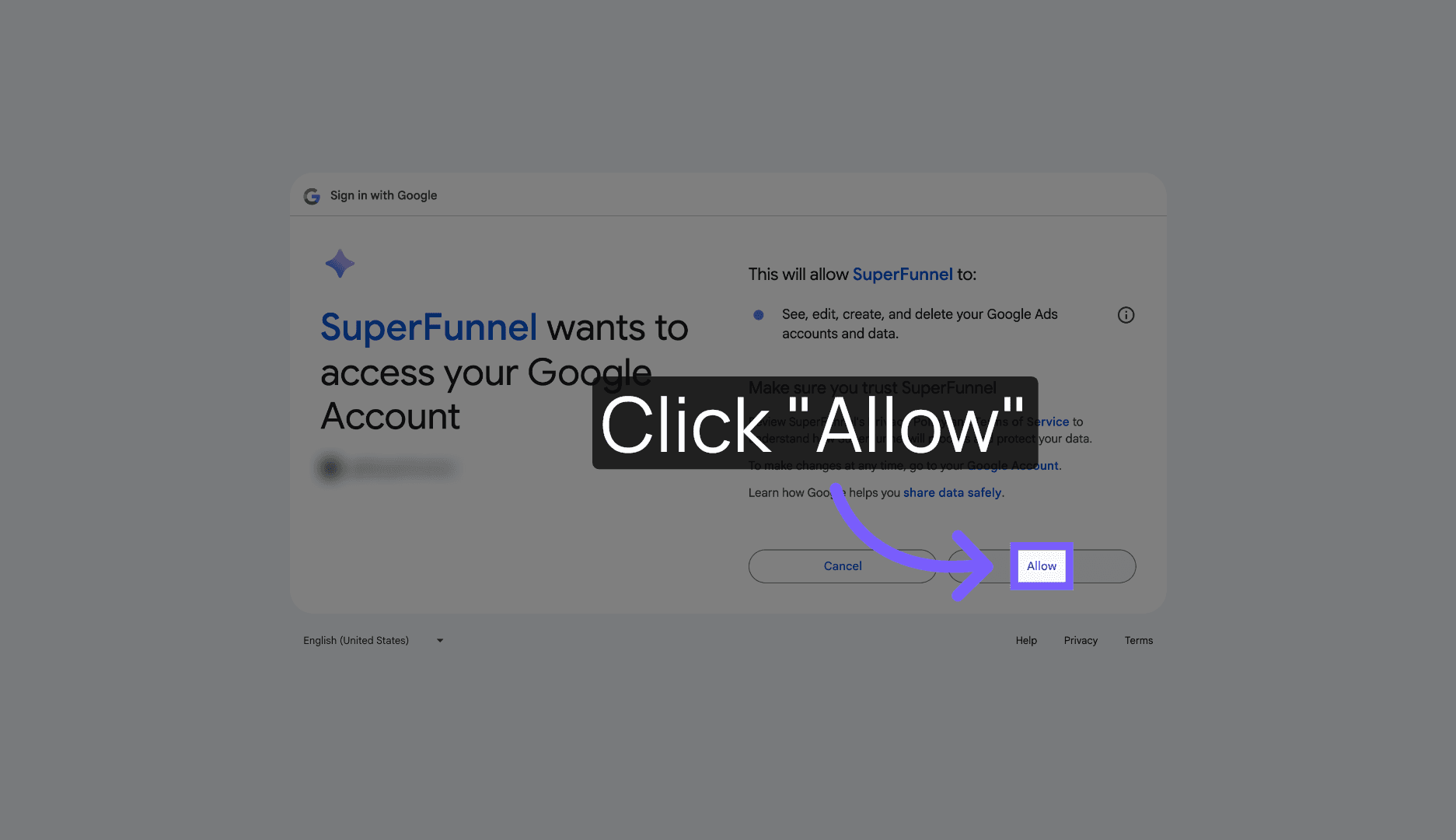
Grant Permissions
Click Allow to grant SuperFunnel permission to access your Google Ads data.
Return to SuperFunnel App
You will be redirected to SuperFunnel, where you can view and connect your available ad accounts to SuperFunnel.
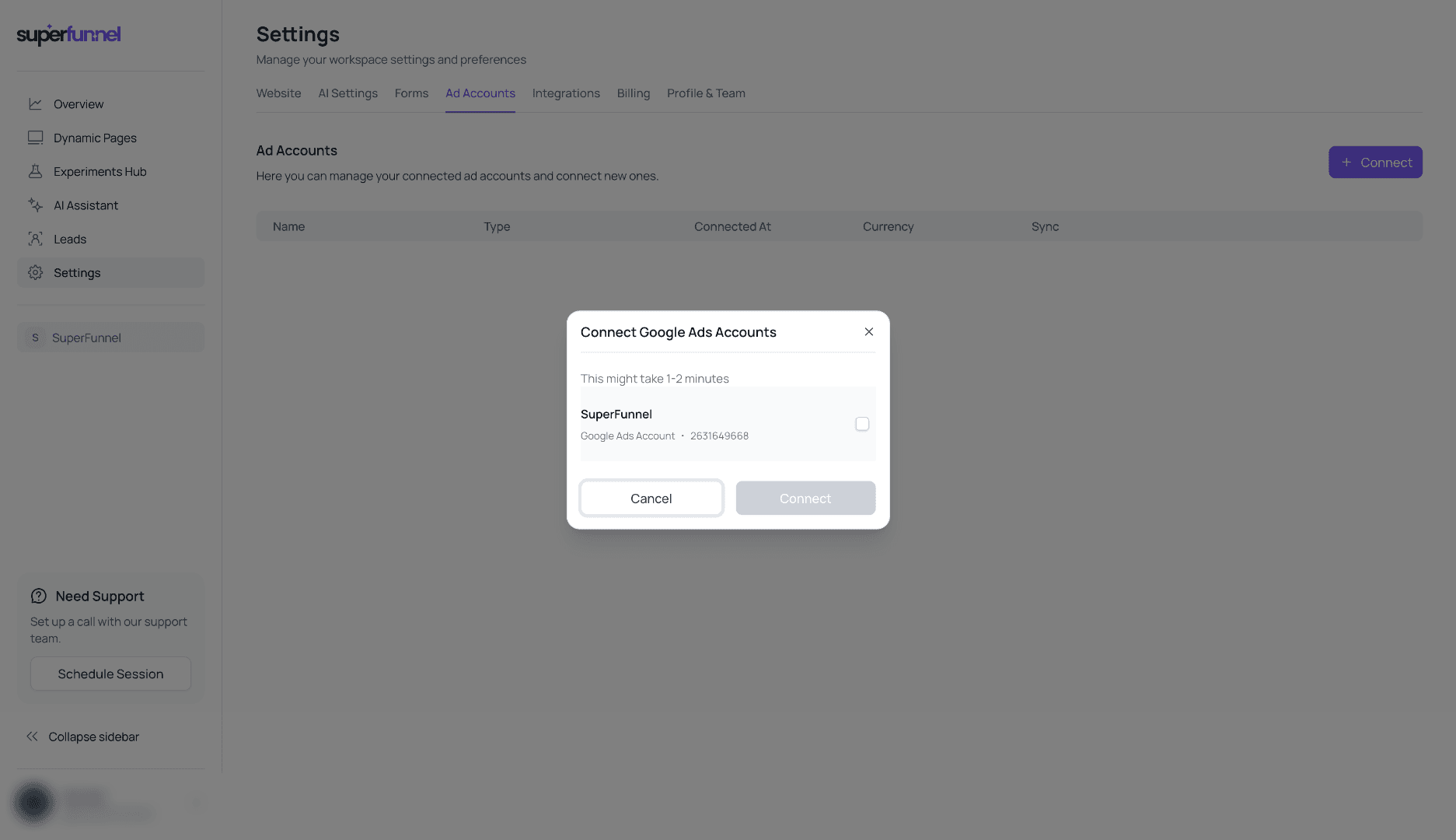
Choose Google Ads Account
Click on the ad accounts that you'd like to connect
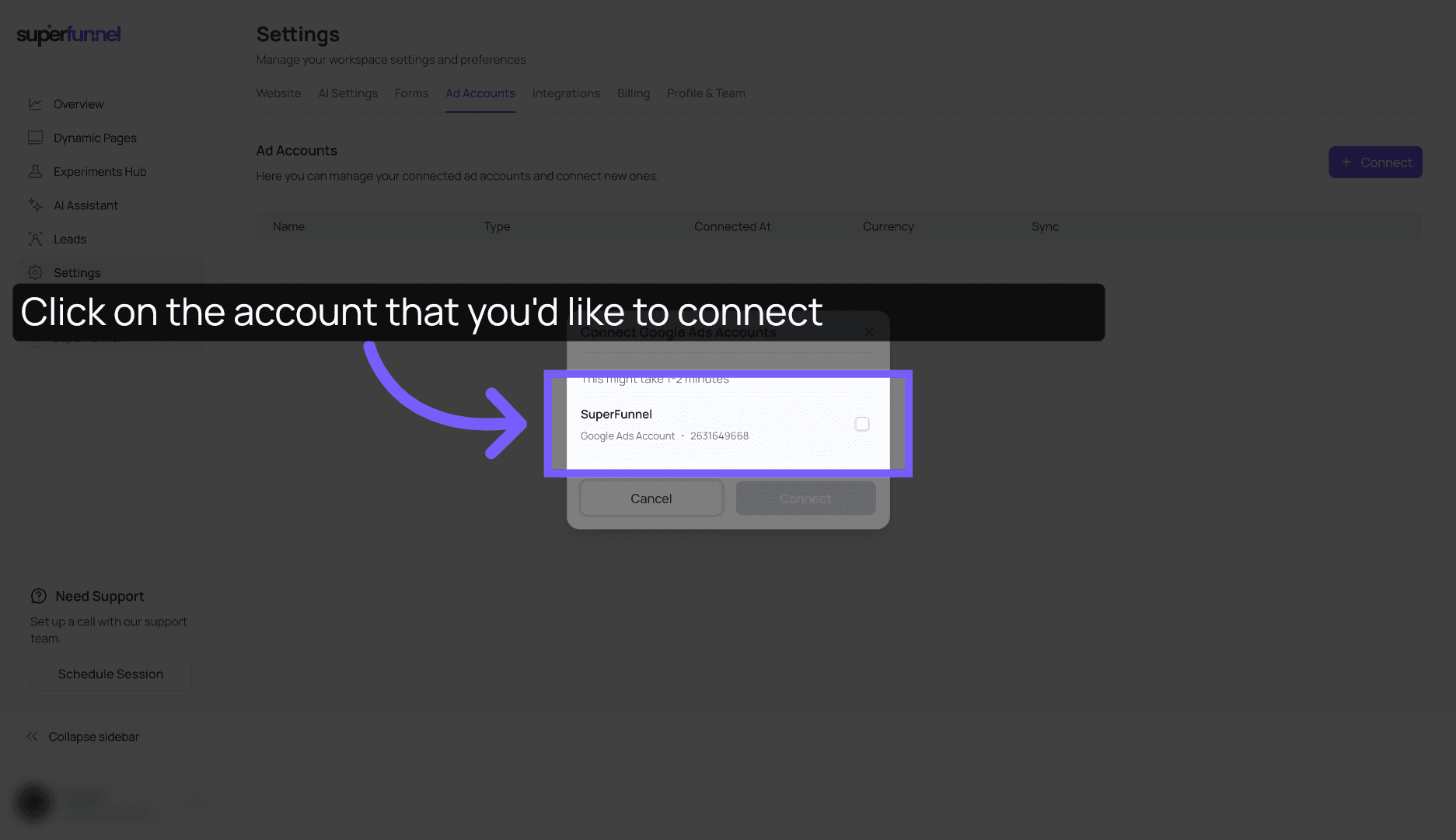
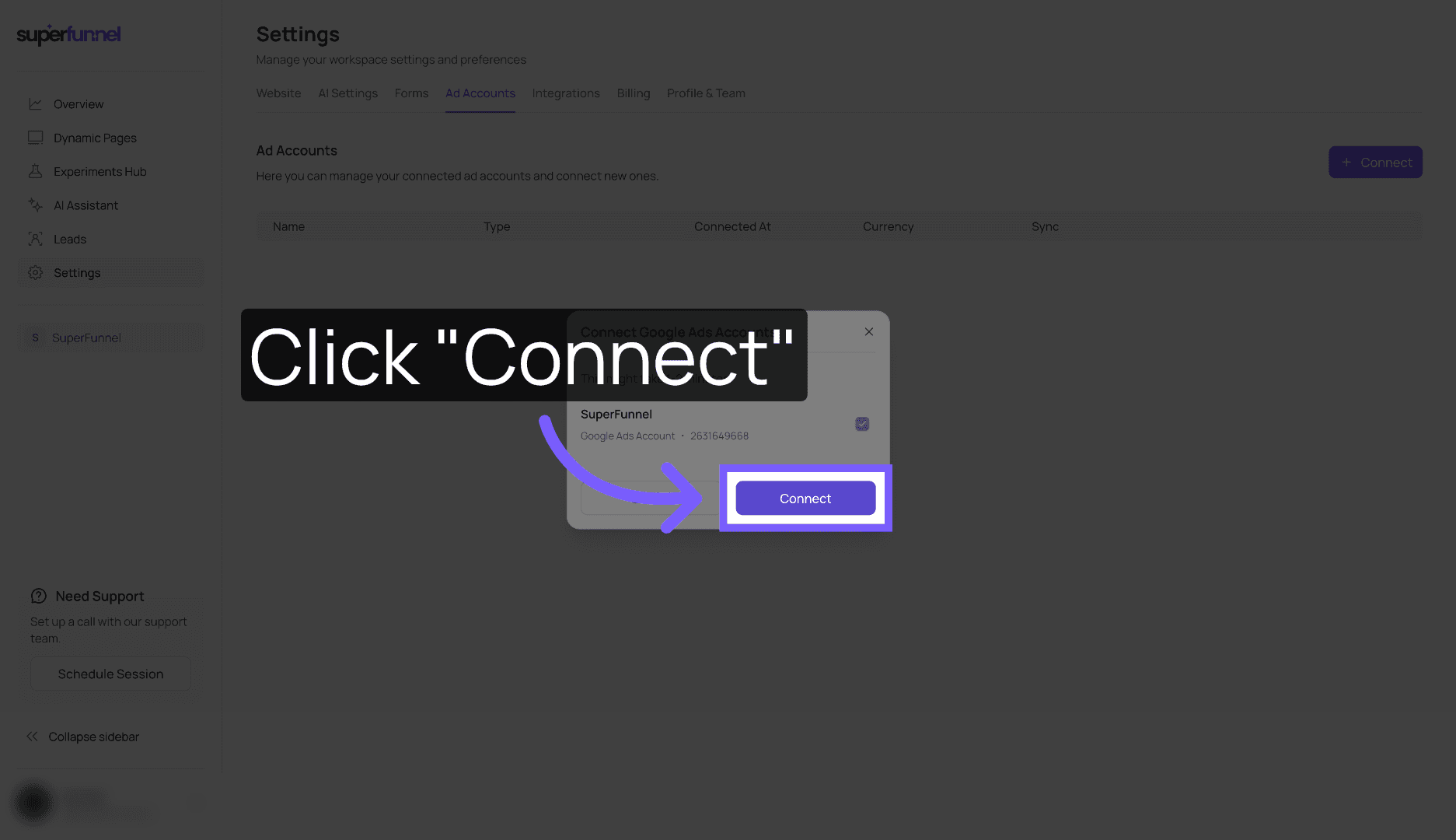
Confirm Account Connection
Click Connect.
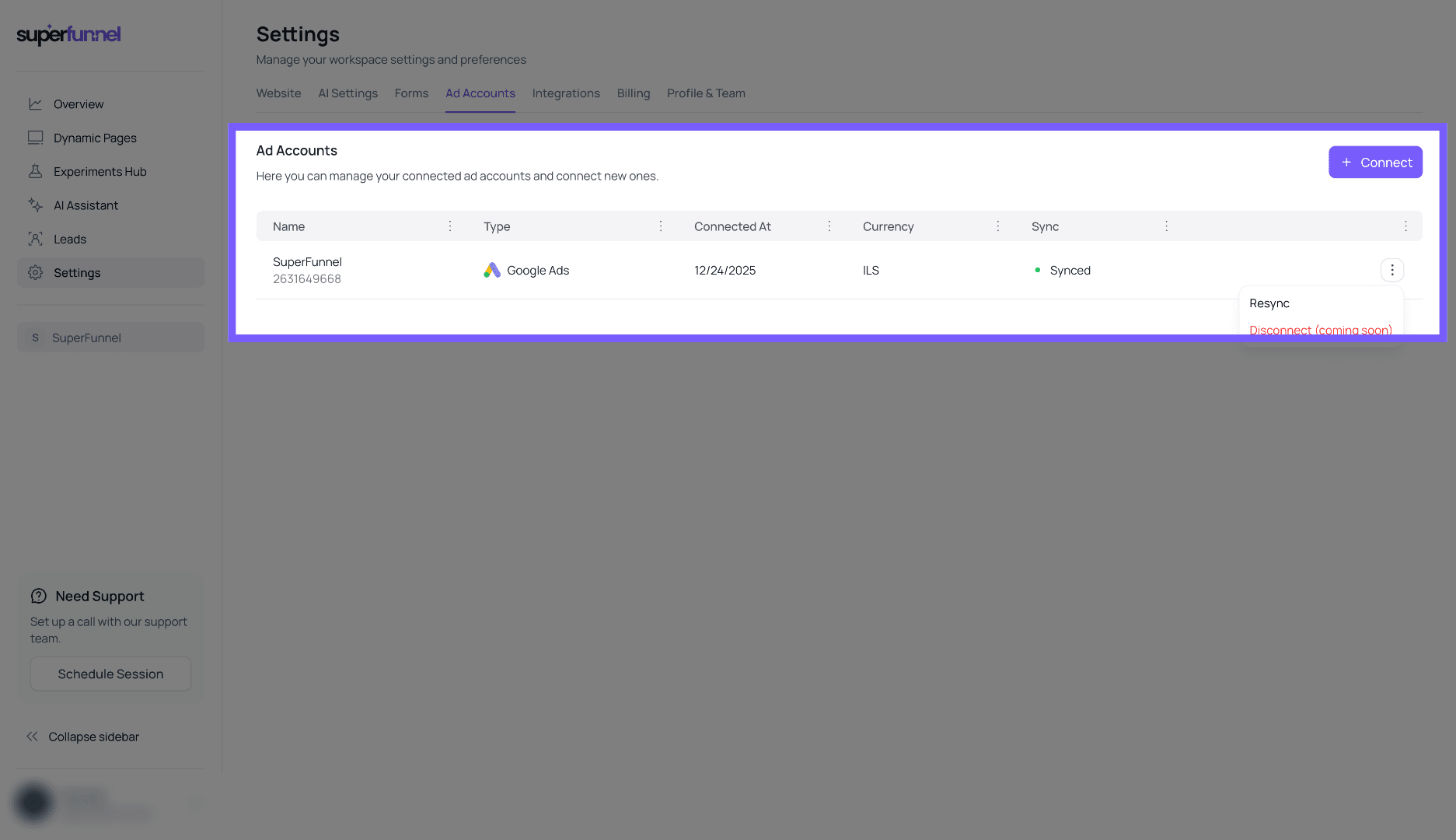
Complete Connection Process
You can now view your account in SuperFunnel. A green indicator will display the synced status, confirming that your account is linked.
Reporting conversions back to Google
Connecting the account is only half the loop. Each visit from a Google ad arrives tagged with a Google click ID (gclid), which SuperFunnel reads to attribute the visit to the right Campaign, Ad Group, and Ad. To optimize campaigns against real outcomes, like purchases or booked demos that happen after the visit, send those conversions back to Google so it can match them to that original click.
Close the loop
SuperFunnel reports backend conversions to Google by matching the gclid
captured on the original visit. See
Offline Conversion Tracking for
the full setup.
What's next
Google Tag Manager
Install a GTM container on your pages and fire tags on SuperFunnel events.
Offline Conversion Tracking
Report purchases and signups back to Google so campaigns optimize on real outcomes.
Meta Ads
Connect your Meta ad account to track and optimize the other side of your funnel.
Filtering Analytics
Filter by origin and URL parameters to keep your campaign numbers accurate.