

Get Started > Onboarding
Team Management
How to add team members and assign their roles in SuperFunnel.
Overview
Add team members to your Account so they can help build pages, quizzes, and manage campaigns. Granting the right access early ensures collaborators can contribute without blocking progress.
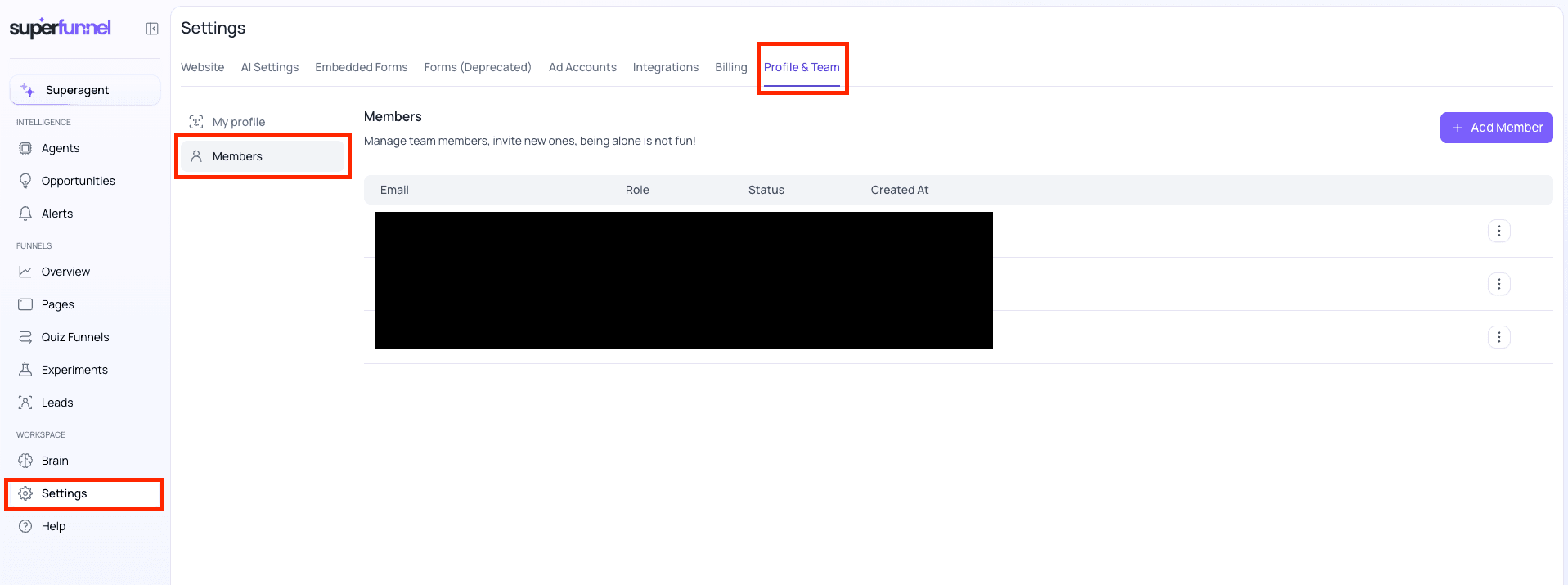
You can view and manage team members in Settings > Profile & Team > Members.
Confirm email spelling
Email address is not editable. To change a user's email, delete and re-add the member.
What this guide covers
Step-by-Step Guide to Adding a team member
Navigate to Members
Navigate to Settings > Profile & Team > Members You will see the list of current team members.
Add Member
Click + Add Member
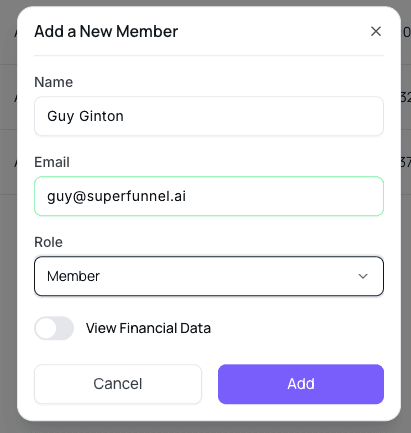
A form will appear.

Enter Member Details
Enter Name and Email Address. Select Member Role. Toggle View Financial Data option.
3.a. Role may be "Member" or "Admin". Admins have full access to all features and settings.
Confirm
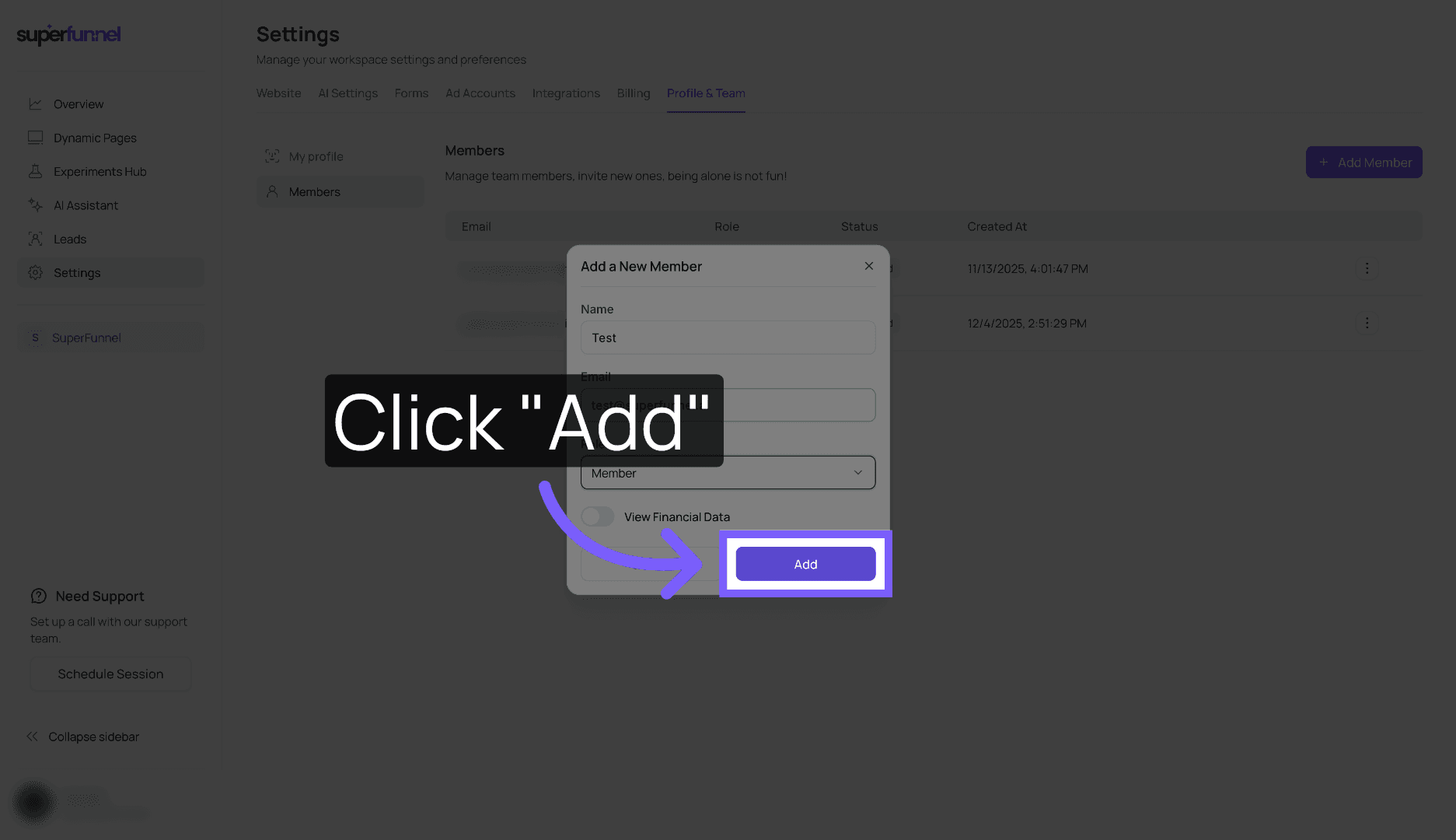
Click Add The new member will receive an invitation email.
Step-by-Step Guide to Editing or Removing a team member
Use the same first three navigation steps to reach your member list, then remove the selected user.
Navigate to Members
Click Settings > Profile & Team > Members
Open Options
To the right of the relevant team member, click ⋮
A menu will appear with options to edit or remove the team member.

Edit or Remove
Click Edit or Remove.
This can't be undone
Summary
You have successfully invited and managed team members in SuperFunnel, ensuring the right collaborators have access to build pages and manage campaigns. Next up, add your domain.